 Starix PDF
Company seals and signatures,placed on a PDF in one click.
Save your seal and signature images once, then place them on any PDF.
Pro feature · Free 14-day trial · Windows 10 / 11

Before you start
Four steps to seal a PDF
STEP 1
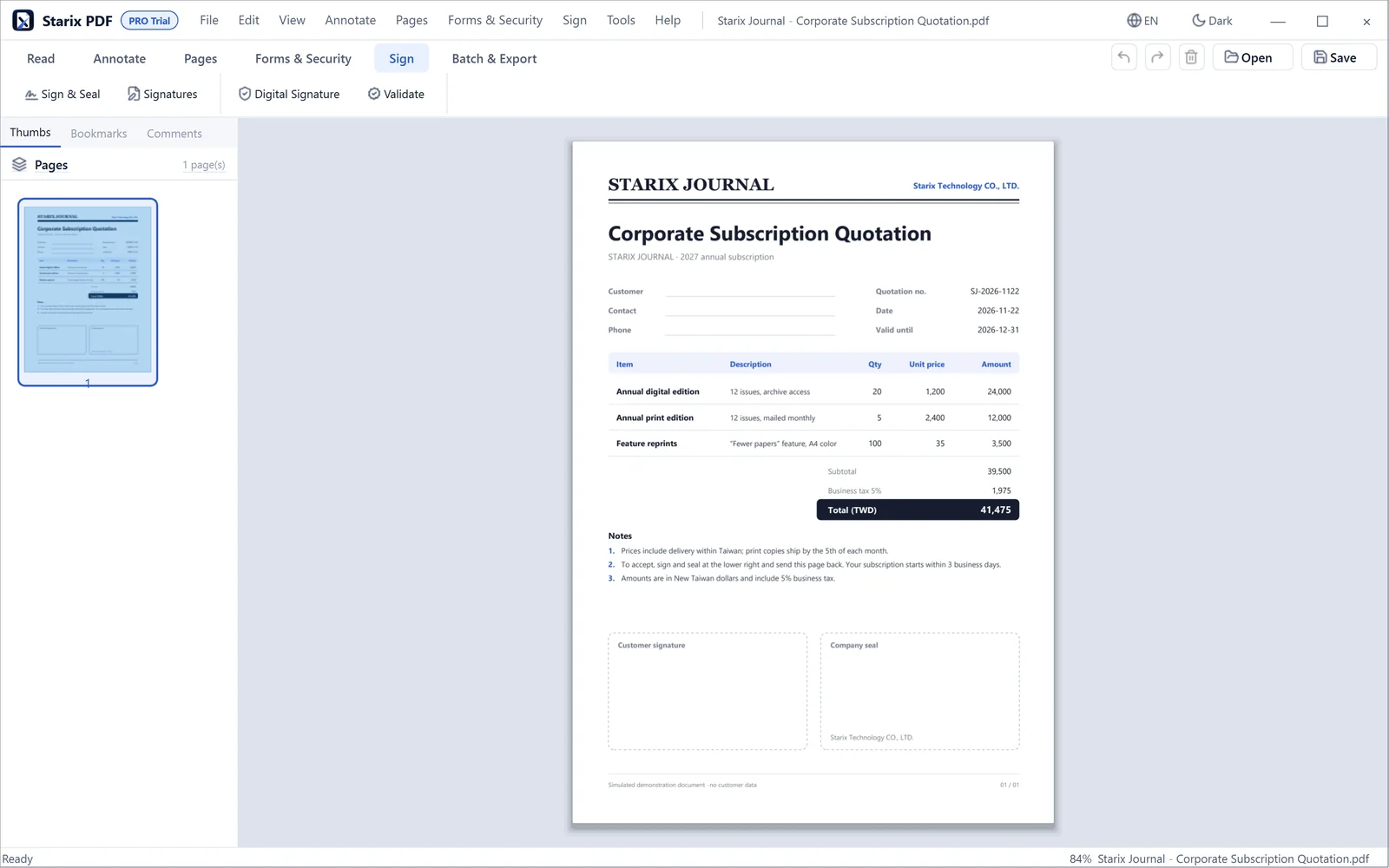
Choose Sign, then Sign & Seal
Open the PDF, choose Sign at the top, then click Sign & Seal.
Real Starix PDF screen · simulated demonstration document STEP 2
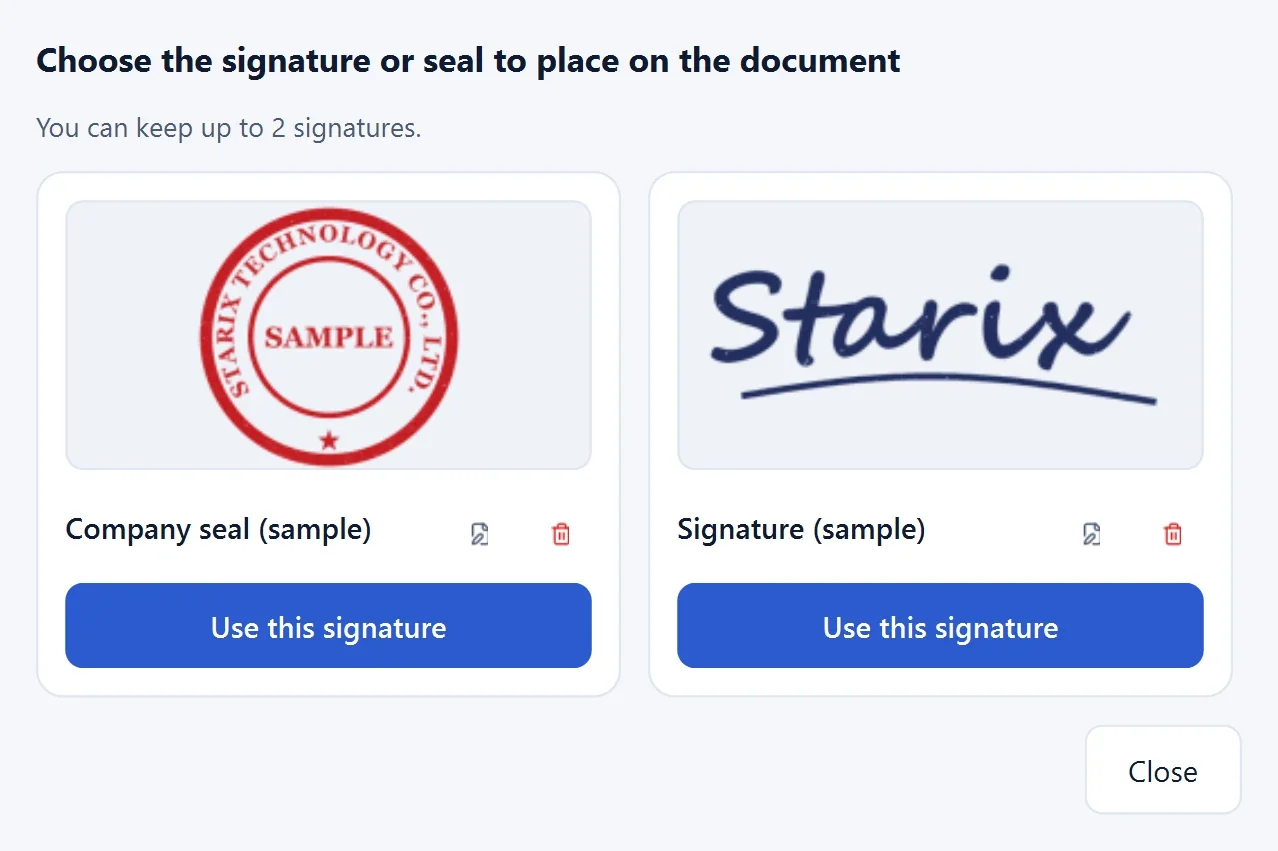
Pick the seal
In Choose Signature or Seal, click Use this signature under the seal. The first time, choose your seal image and it is ready to place.
Real Starix PDF screen · simulated demonstration document STEP 3
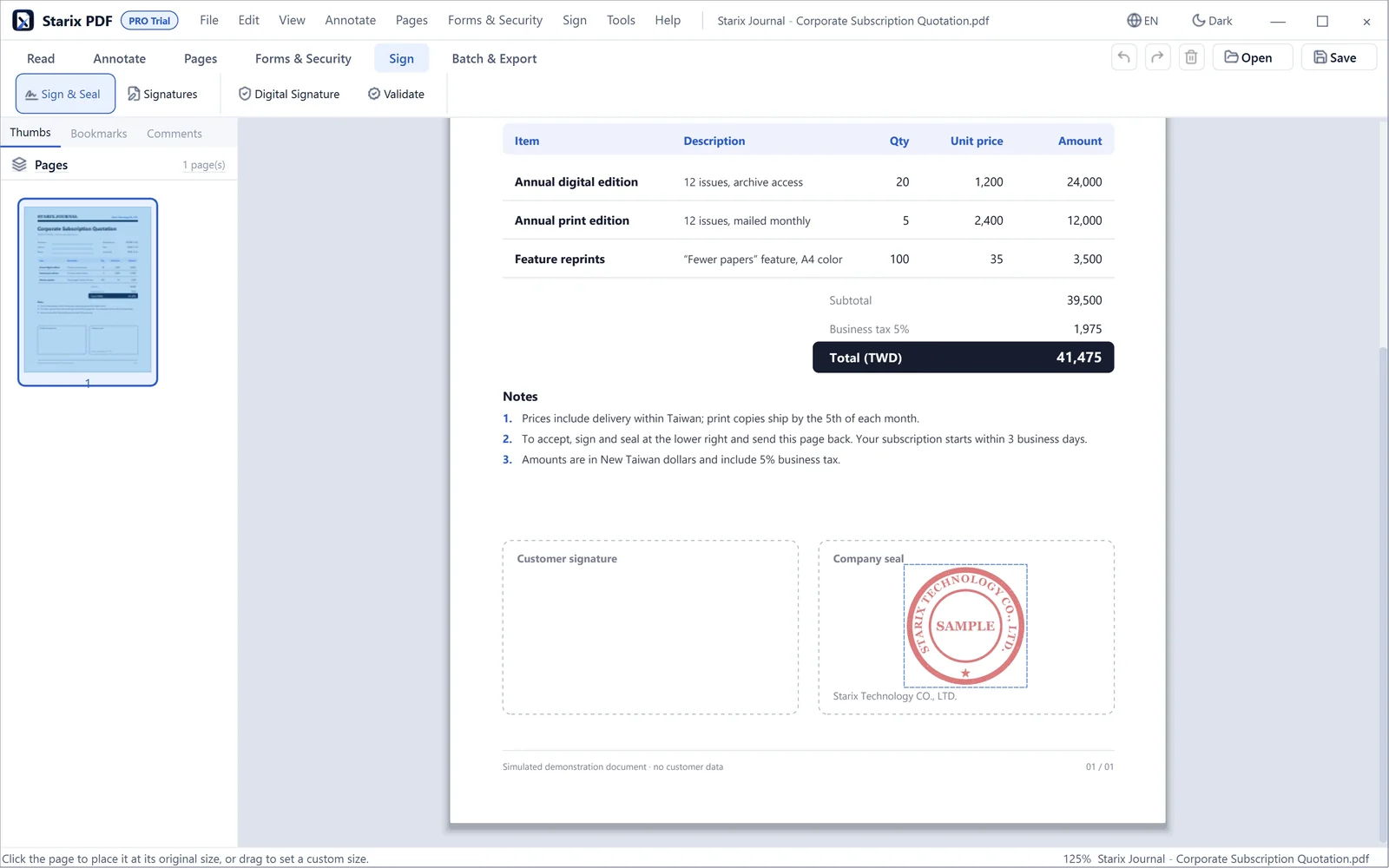
Point and click
The seal follows the pointer at the size it will be placed. Click the field to place it, or drag a box to set the size.
Real Starix PDF screen · simulated demonstration document STEP 4
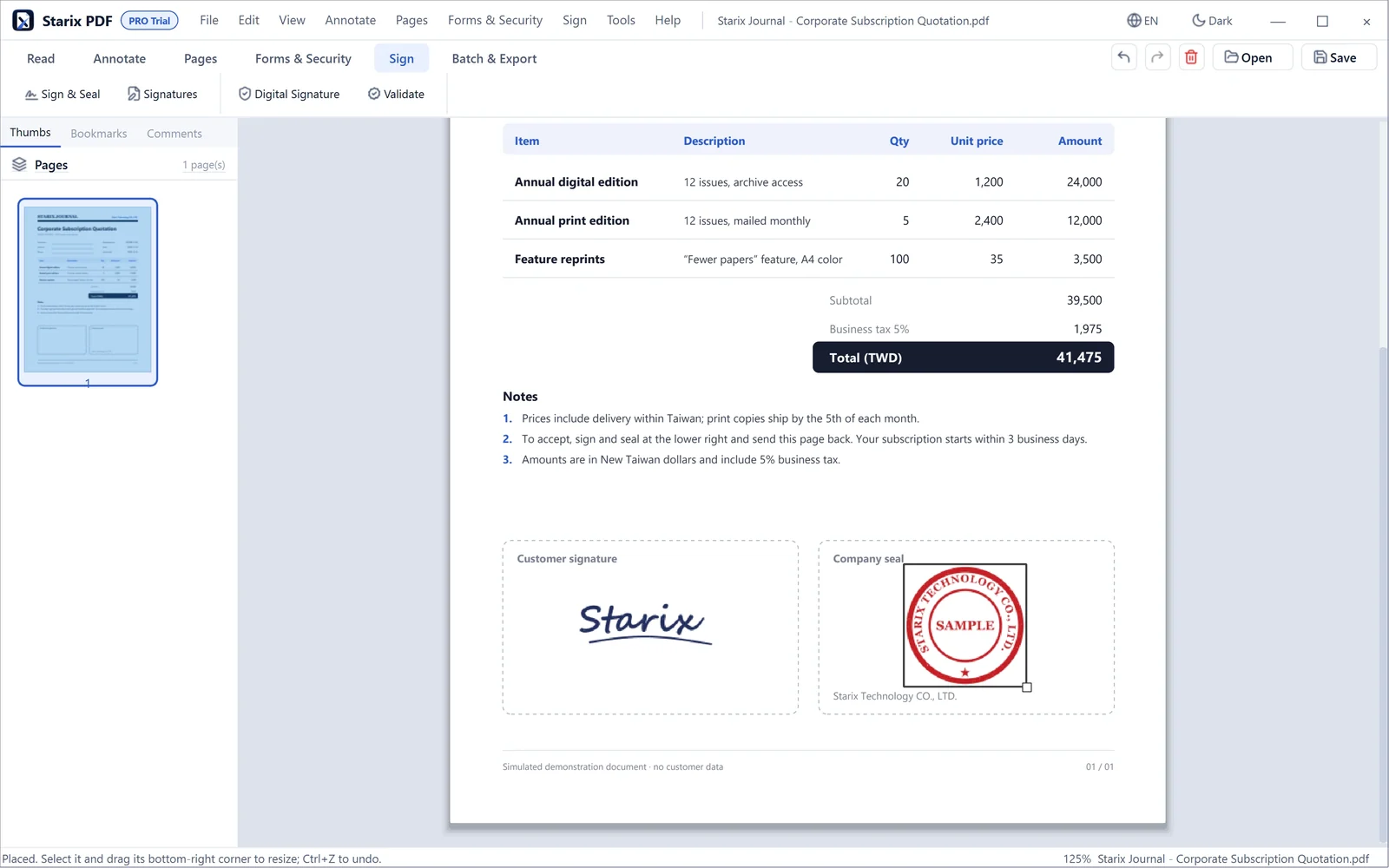
Adjust and save
Drag to move it, drag the bottom-right corner to resize, and press Ctrl+Z to undo. Then click Save.
Real Starix PDF screen · simulated demonstration document
Preparing the seal image
Practice with sample files
Download the sample quotation and seal images and follow the steps above. The sample files are for practice only.


Questions and answers
Can I keep both a company seal and my signature?
Yes. Use Signatures to rename, delete or replace them.
How is Sign & Seal different from Digital Signature?
Sign & Seal places an image of your signature or seal on the page. Digital Signature signs the whole file with your certificate, and Validate shows its status. You can use both on one document.
Where are my seal images kept?
In Starix PDF on this computer.
Seal your next PDFwith Starix PDF.
Download Starix PDF and start using Sign & Seal.
Download for Windows