 Starix PDF
Before you send it,remove the personal data.
Mark a name, phone number or email address and apply redaction: the content underneath is deleted from the file for good.
Pro feature · Free 14-day trial · Windows 10 / 11

Before you start
Four steps to remove personal data
STEP 1
Choose Forms & Security, then Redact
Open the PDF, choose Forms & Security at the top, then click Redact.
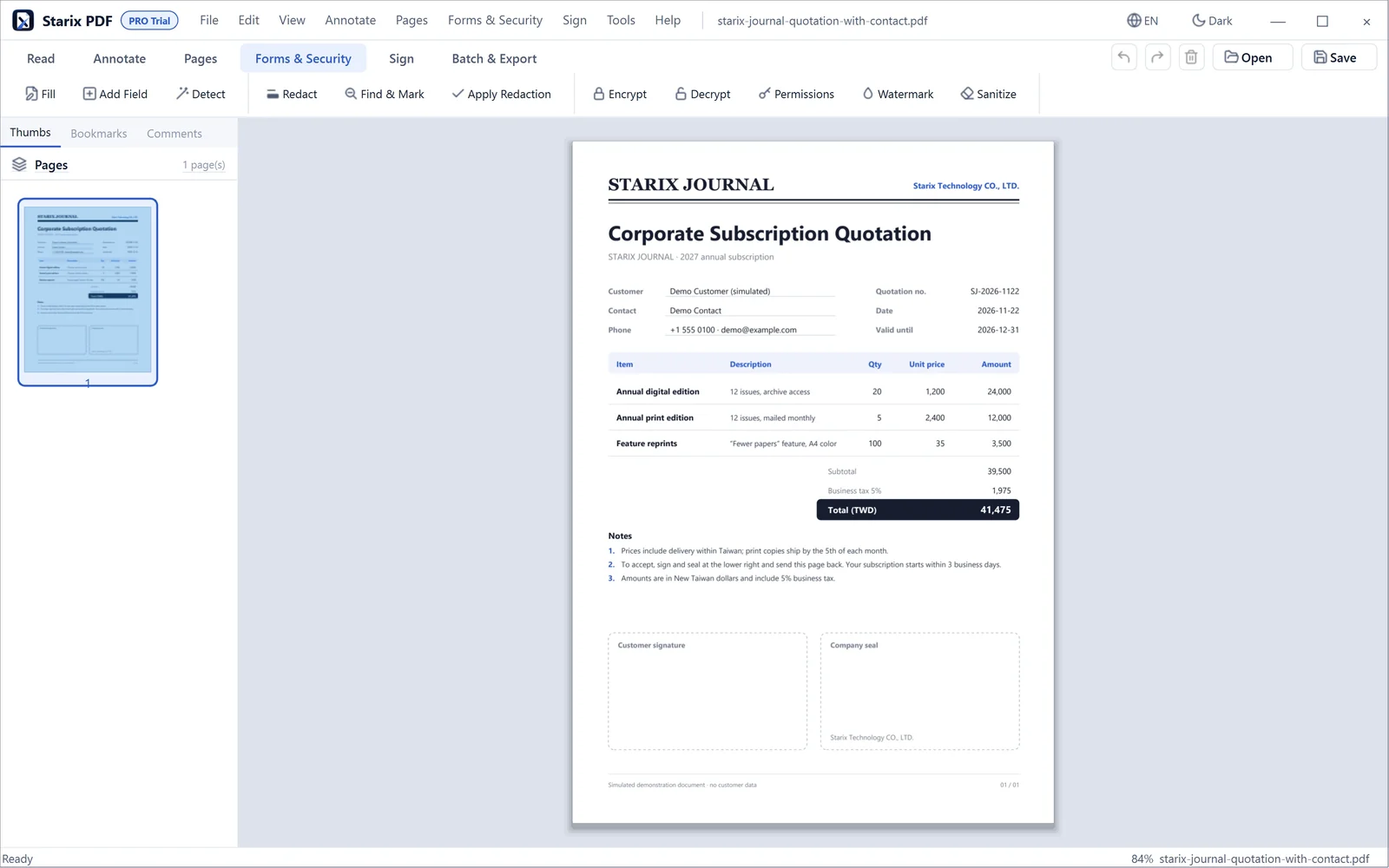
Real Starix PDF screen · simulated demonstration document STEP 2
Mark what to remove
Drag over the text or pictures to remove; you can mark several places. Each area shows as a mark first.
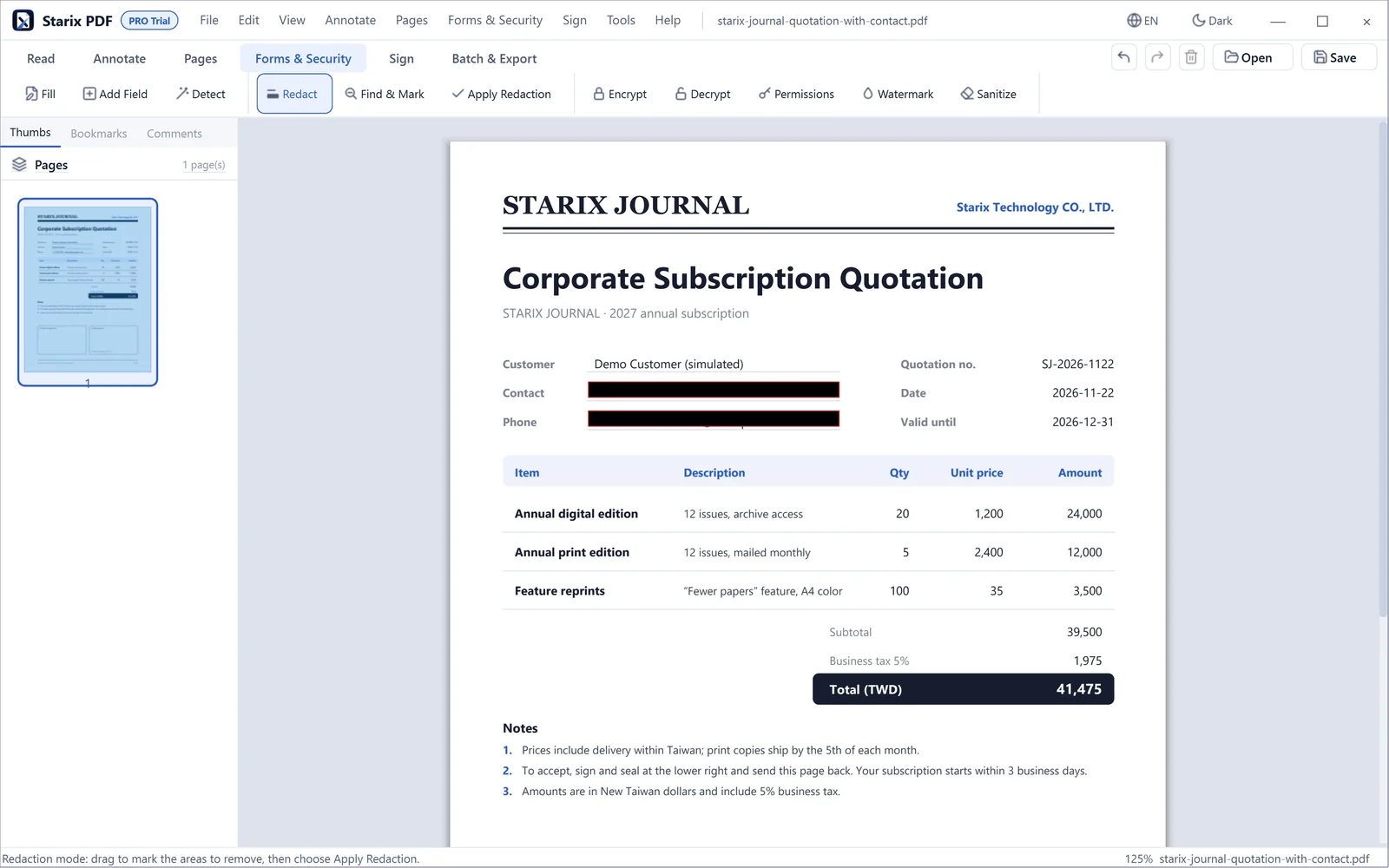
Real Starix PDF screen · simulated demonstration document STEP 3
Apply and confirm
Click Apply Redaction, then Permanently Remove in the confirmation.
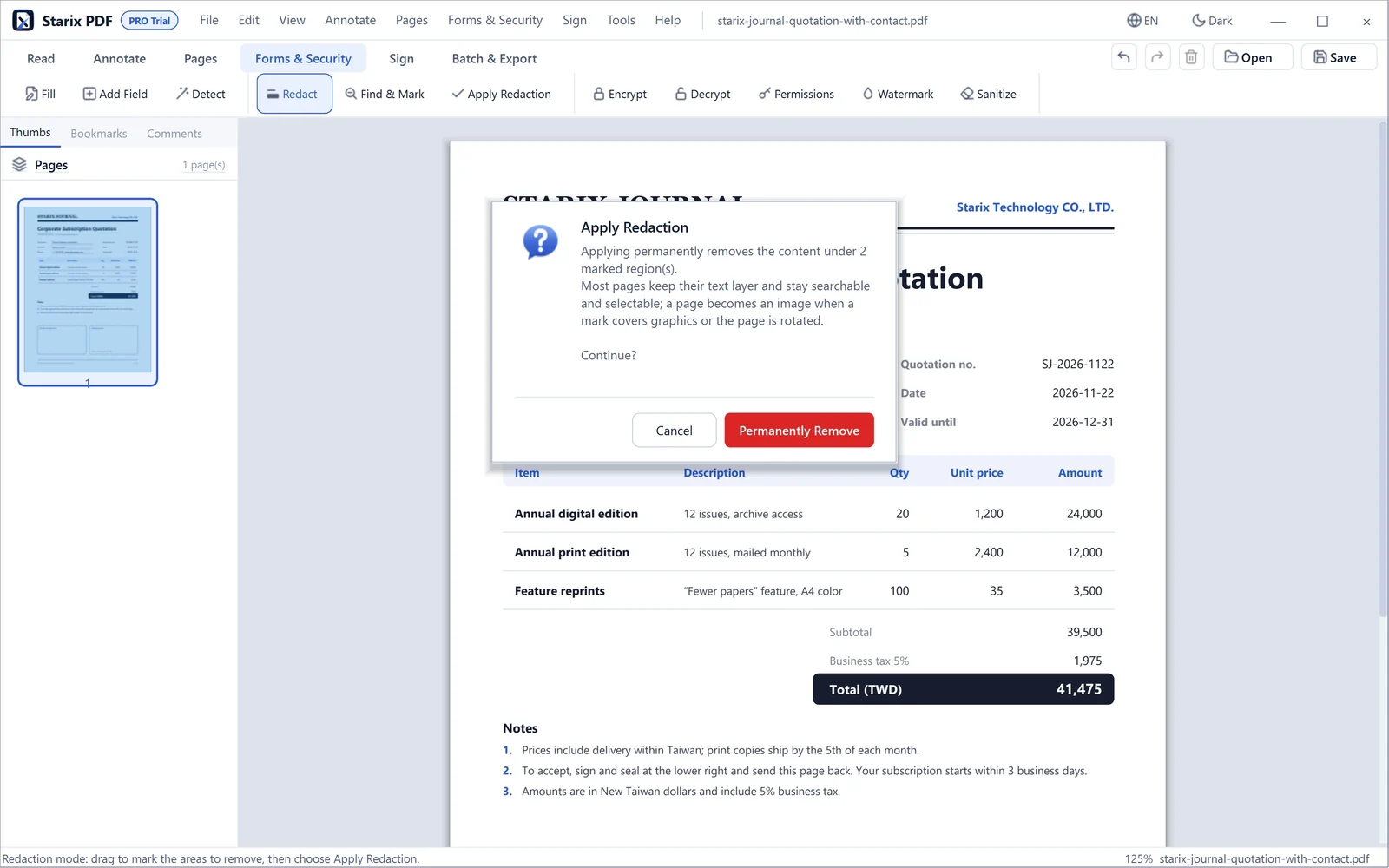
Real Starix PDF screen · simulated demonstration document STEP 4
Check and save
The marked areas turn into black boxes and the content underneath is deleted from the file. Then click Save.
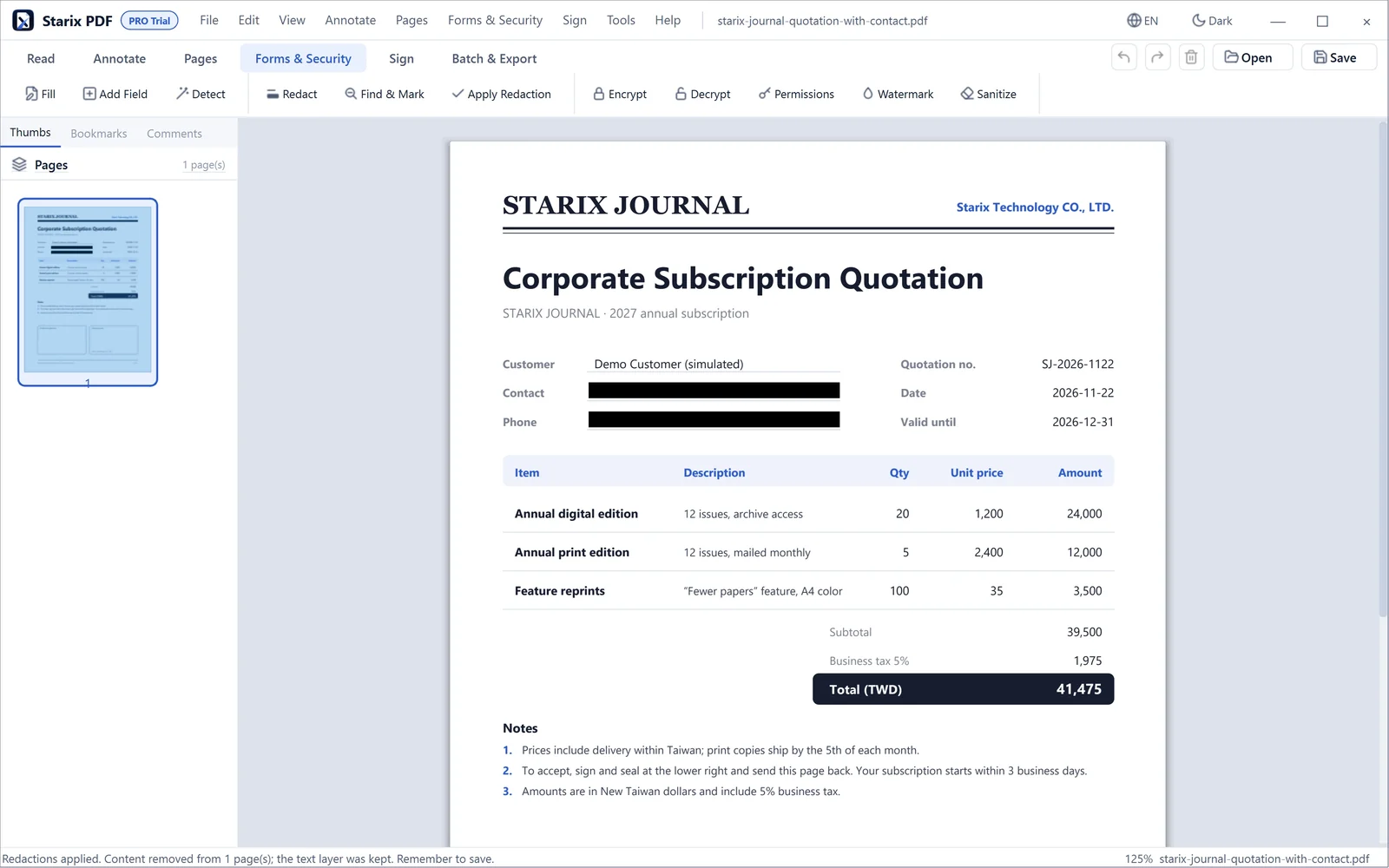
Real Starix PDF screen · simulated demonstration document
Try it with the practice file
The practice file is a quotation filled in with sample contact details. Redact the contact and phone with the steps above. The practice file is for practice only.
Questions and answers
How is redaction different from drawing a black box?
Apply Redaction deletes the text and pictures under the mark from the file; a drawn box leaves the text in the file, where it can still be copied or searched.
Can I find every occurrence at once?
Yes. Click Find & Mark, type the text to find, and every match is marked; then click Apply Redaction.
What if I mark the wrong place?
Before applying, select the mark and press Delete, or press Ctrl+Z.
Before you share a file,redact the personal data.
Download Starix PDF and redact the practice file.
Download for Windows