 Starix PDF
Put a password on a PDFso only the right people open it.
Add a password before you send a quotation, contract or payslip; recipients type it to open the file. You can also save a copy without the password.
Adding a password is Pro · Removing one is free · Windows 10 / 11

Before you start
Four steps to add or remove a password
STEP 1
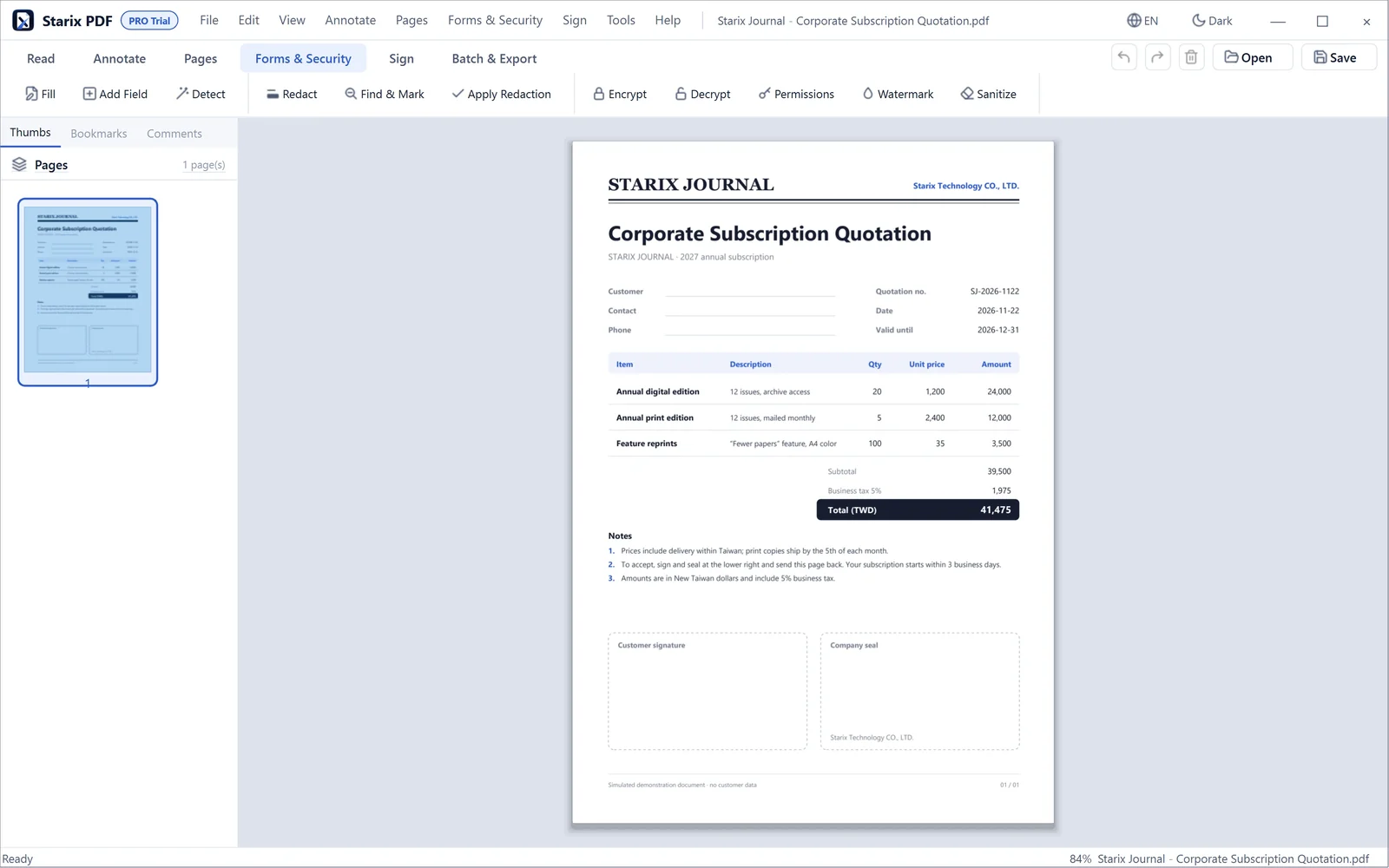
Choose Forms & Security, then Encrypt
Open the PDF, choose Forms & Security at the top, then click Encrypt.
Real Starix PDF screen · simulated demonstration document STEP 2
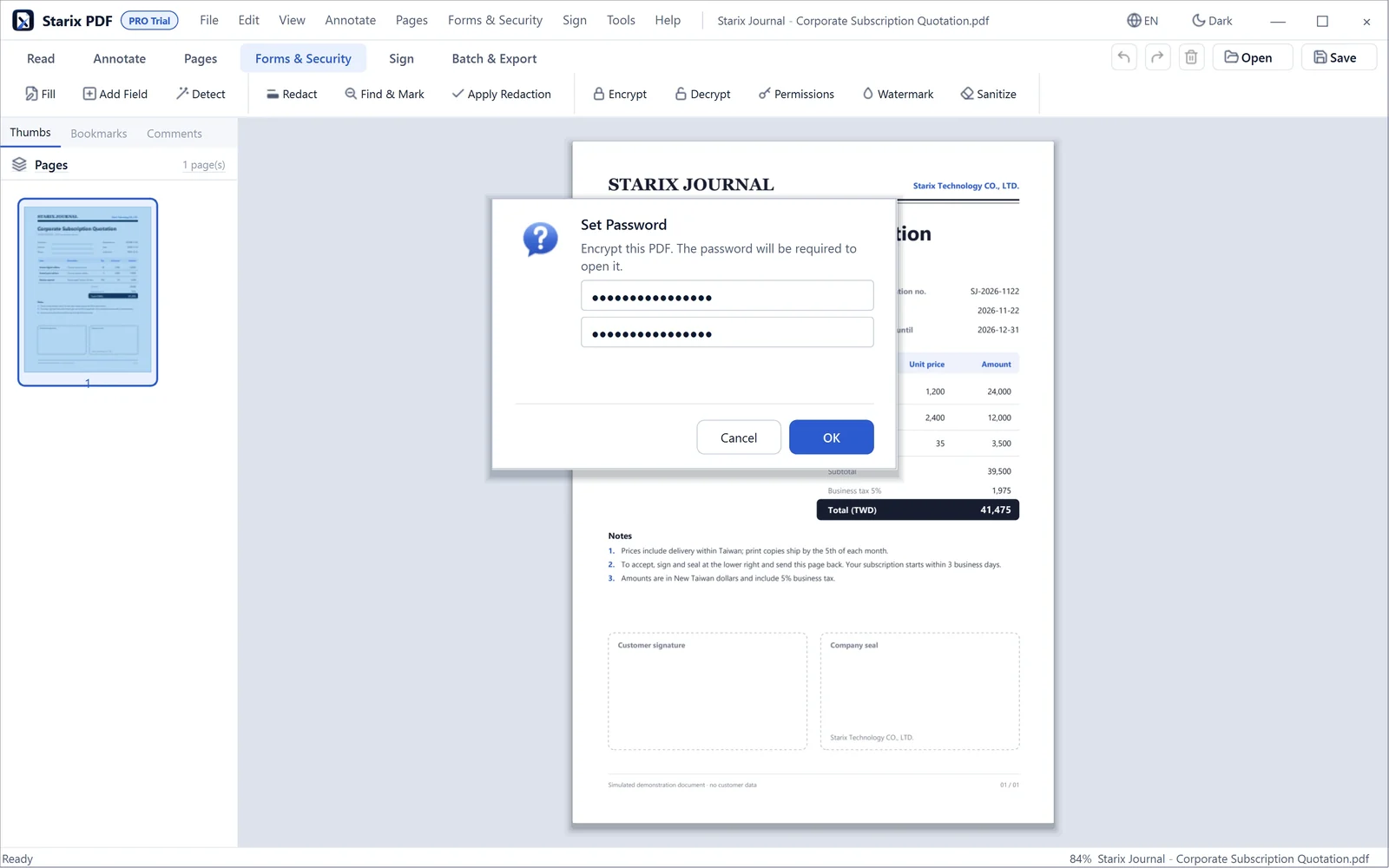
Type the password twice
In Set Password, type the same password twice, click OK and choose where to save. The protected version is saved as a copy ending in _protected.
Real Starix PDF screen · simulated demonstration document STEP 3
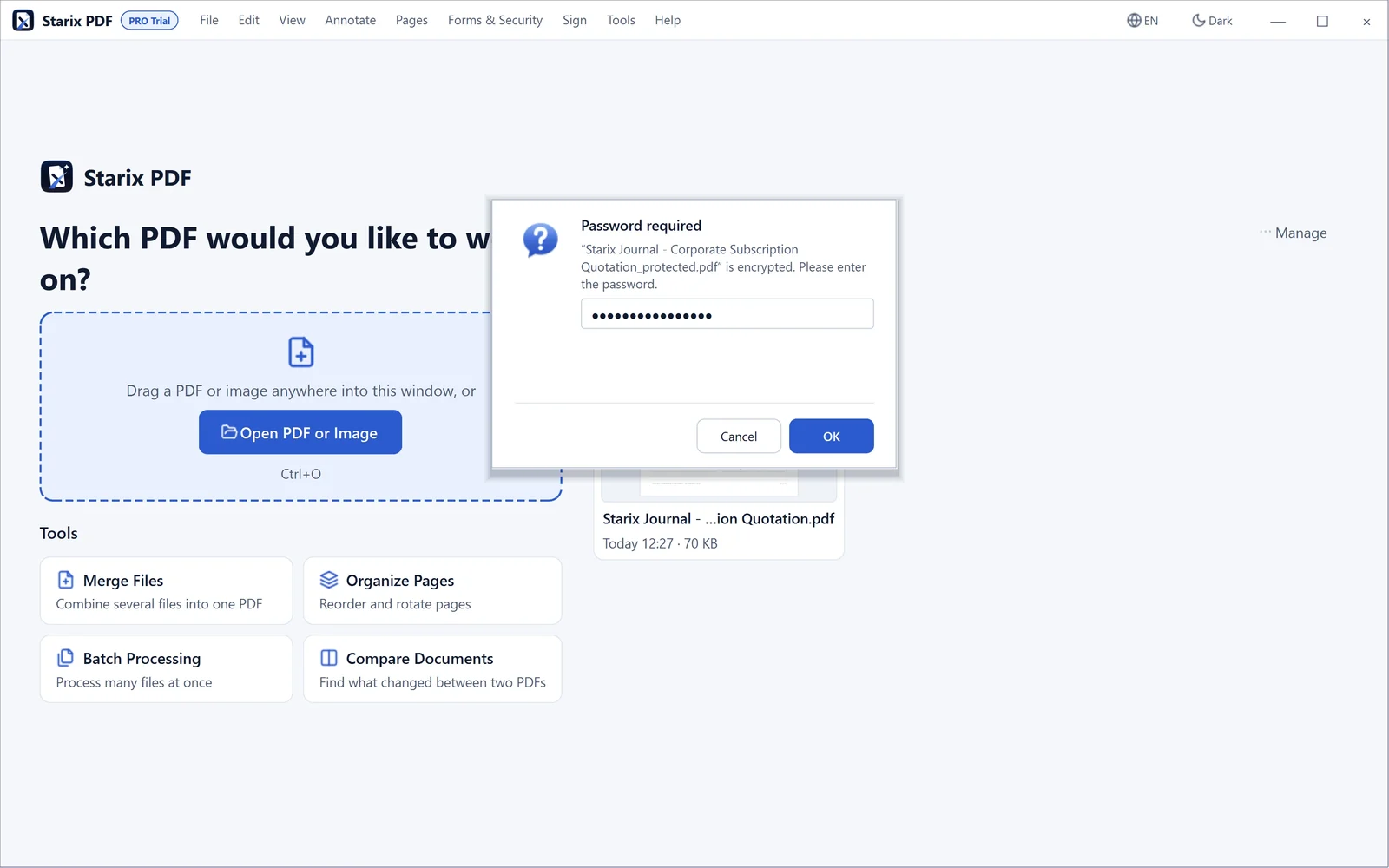
Open it with the password
Opening the protected file shows Password required; type the password and click OK.
Real Starix PDF screen · simulated demonstration document STEP 4
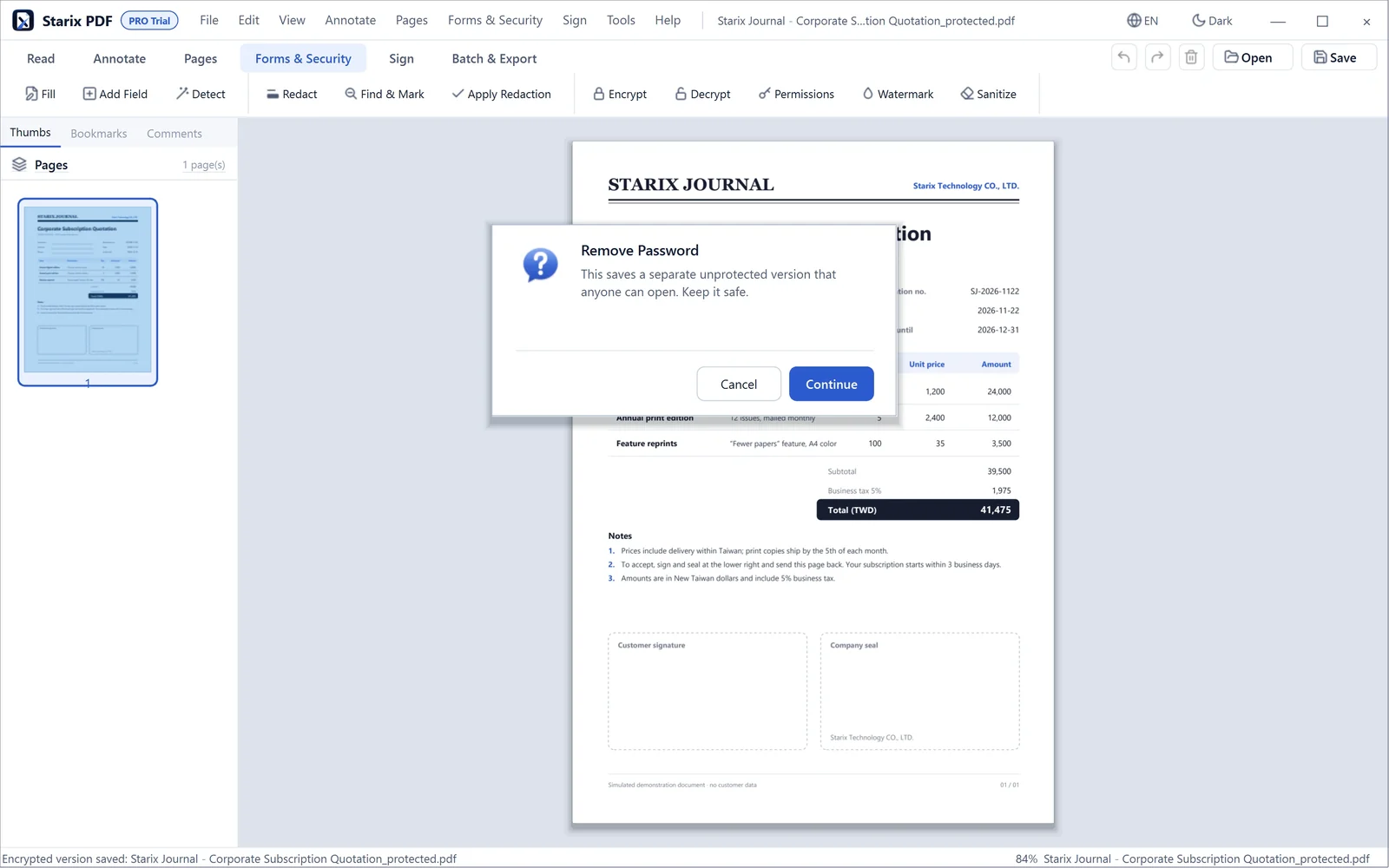
Remove the password when needed
With the protected file open, click Decrypt, then Continue, and choose where to save a copy without the password.
Real Starix PDF screen · simulated demonstration document
Practice with a sample file
Download the sample quotation, add a password with the steps above, then remove it. The sample file is for practice only.
Questions and answers
What encryption does it use?
AES-256; the password is needed to open the file.
Do I need Pro to remove a password?
Removing a password works in the free version; open the file with its password first.
What happens to the original file?
Adding and removing a password both save a new file; the original stays as it is.
Before an important file goes out,add a password.
Download Starix PDF and add a password to the sample quotation.
Download for Windows