 Starix PDF
Number every pagein one go.
Choose the page-number format and position; when you save, every page carries its number.
Pro feature · Free 14-day trial · Windows 10 / 11

Before you start
Four steps to page numbers
STEP 1
Choose Pages, then Page Numbers
Open the PDF, choose Pages at the top, then click Page Numbers.

Real Starix PDF screen · simulated demonstration document STEP 2
Choose the format and position
In Page number format choose a style such as 1 / 10, in Page number position choose Bottom right, then click Save.
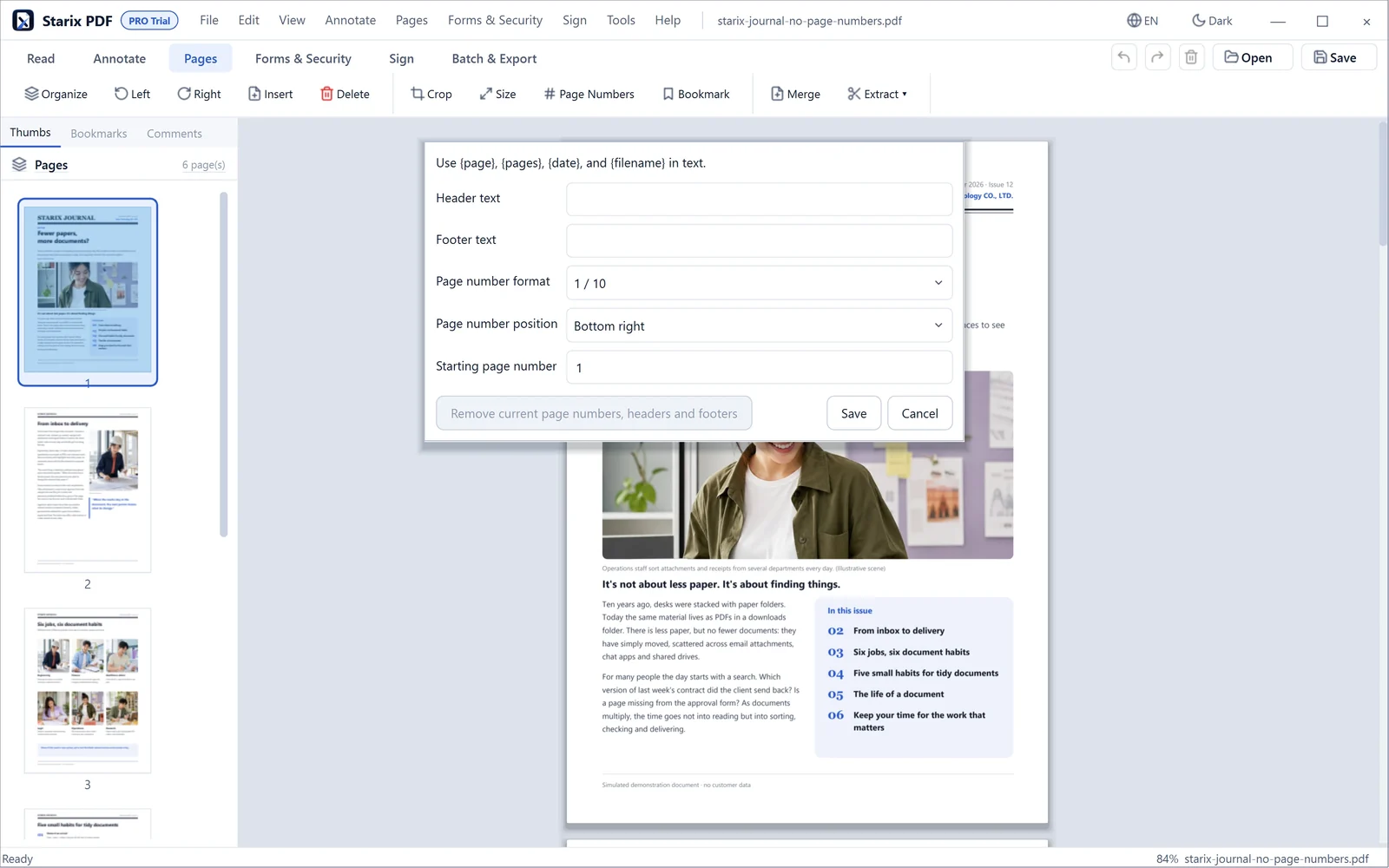
Real Starix PDF screen · simulated demonstration document STEP 3
Save the file
When the status bar confirms the page numbers, click Save at the top right to write them into the file.

Real Starix PDF screen · simulated demonstration document STEP 4
Check the numbers
Every page of the saved file carries its number at the bottom right, as text you can search and select.

Real Starix PDF screen · simulated demonstration document
More page-number settings
Try it with the practice file
The practice file is a six-page STARIX JOURNAL issue. Add 1 / 6 numbers with the steps above. The practice file is for practice only.
Questions and answers
Which pages get a number?
Every page, counting up from the Starting page number.
How do I remove the numbers?
Click Page Numbers again, click Remove current page numbers, headers and footers, then save.
What about numbering across several legal files?
Bates Numbering… on the Pages menu at the top numbers several files in one continuous sequence.
Page numbers makelong documents easy to find your way in.
Download Starix PDF and number the practice file.
Download for Windows