 Starix PDF
Upright, in order, nothing extra —all in one window.
Sideways scans, attachments in the wrong order and stray blank pages, sorted out in the Organize Pages window.
Pro feature · Free 14-day trial · Windows 10 / 11

Before you start
Four steps to organize pages
STEP 1
Choose Pages, then Organize
Open the PDF, choose Pages at the top, then click Organize. Every page is laid out as a thumbnail.
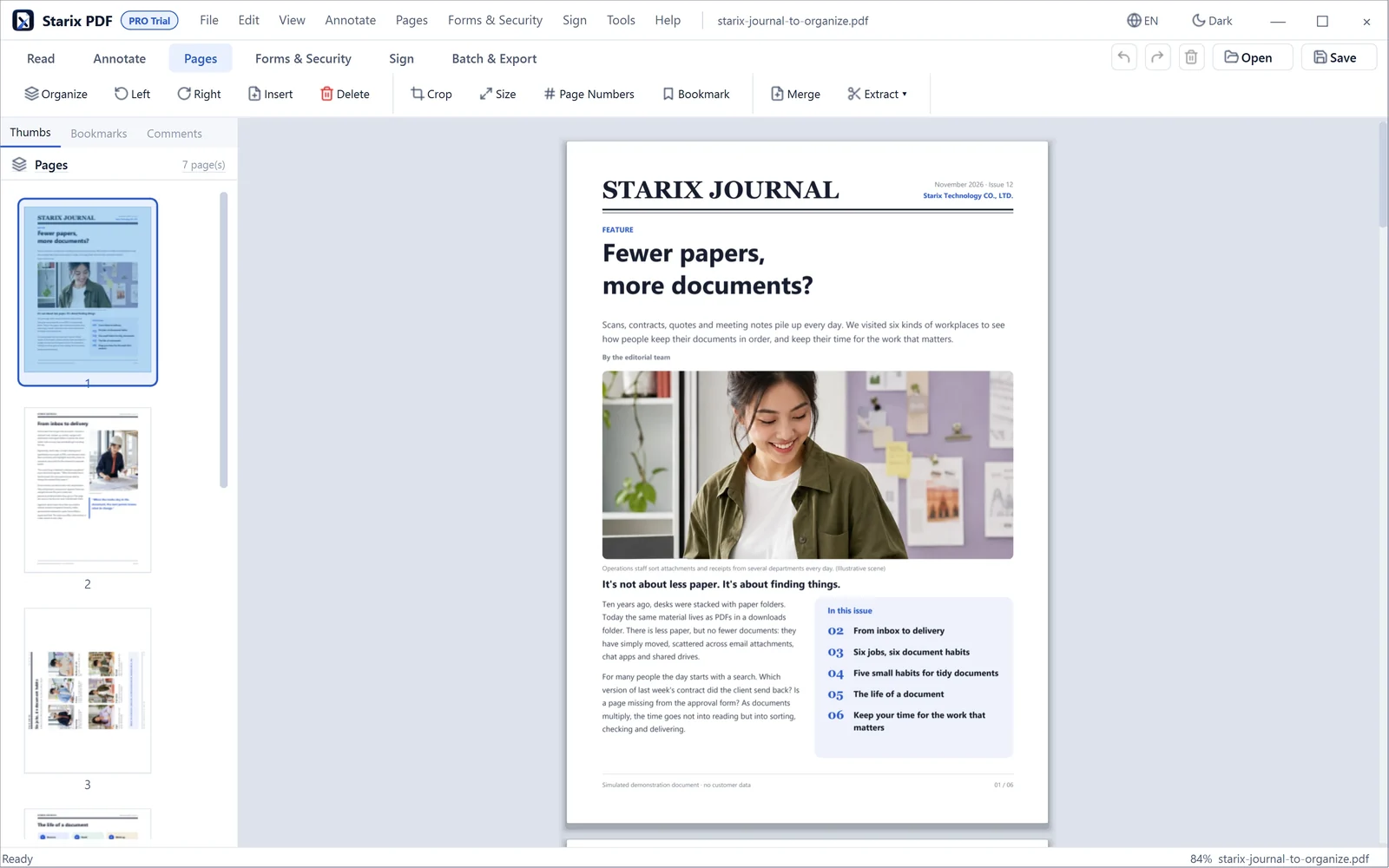
Real Starix PDF screen · simulated demonstration document STEP 2
Turn sideways pages upright
Click the sideways page and click Rotate Right or Rotate Left until it is upright.

Real Starix PDF screen · simulated demonstration document STEP 3
Reorder and delete extra pages
Drag thumbnails to change the order. Select blank or extra pages, click Delete and confirm.

Real Starix PDF screen · simulated demonstration document STEP 4
Click Done, then save
Click Done to return to the main window, check the thumbnails on the left, then click Save.
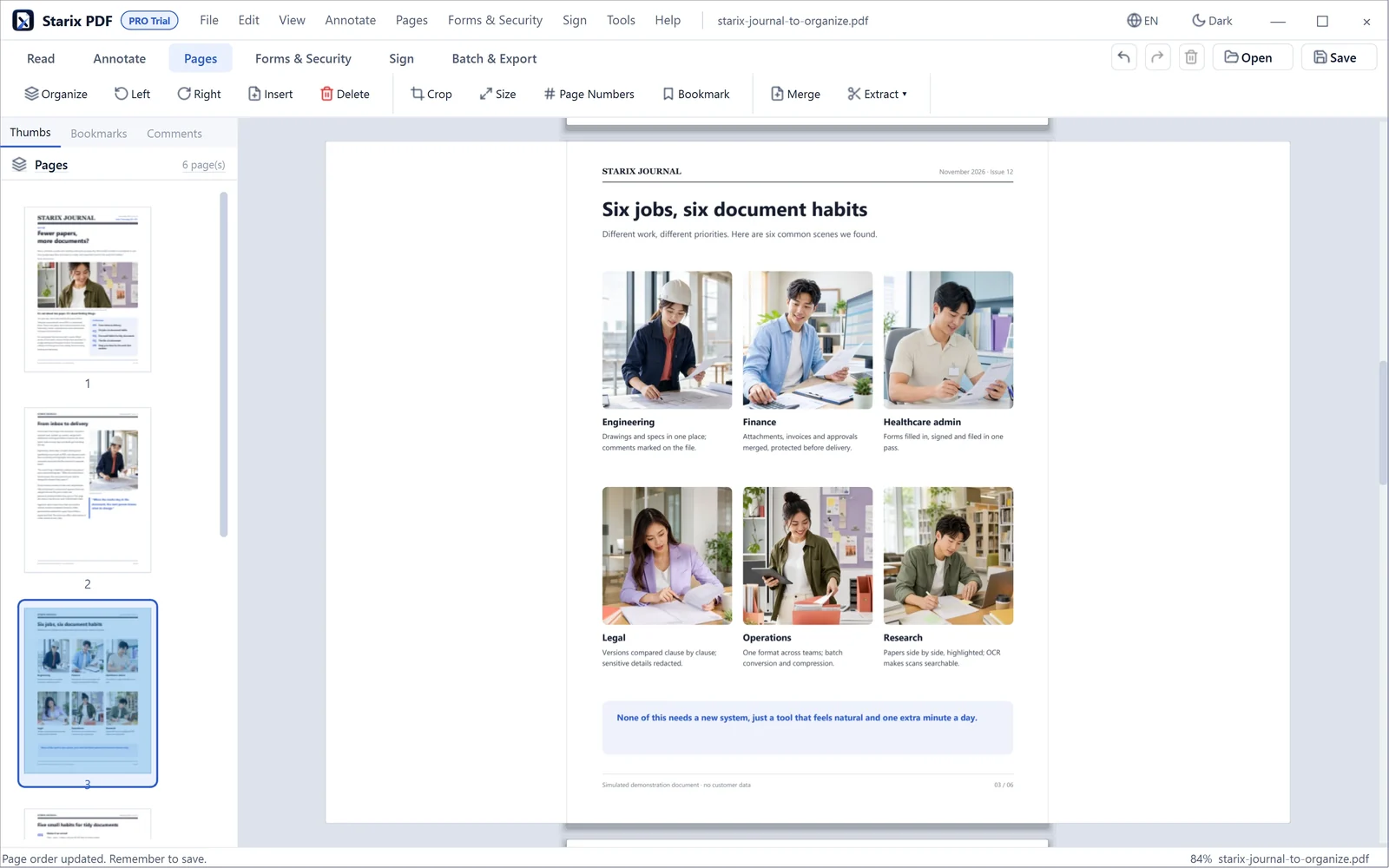
Real Starix PDF screen · simulated demonstration document
Try it with the practice file
The practice file has one sideways page, two pages in the wrong order and a blank page at the end. Organize it with the steps above. The practice file is for practice only.
Questions and answers
Can I work on many pages at once?
Yes. Hold Ctrl or Shift, click several thumbnails, then click Rotate Right or Delete.
Can I add pages from another file?
Yes. Click Insert File in Organize Pages, or drag the file into the window.
What if I make a mistake?
Press Ctrl+Z before saving to undo the whole change.
Pages in order,documents that read well.
Download Starix PDF and organize the practice file.
Download for Windows