 Starix PDF
Search the textin a scanned PDF.
Run OCR and choose the document's language: the words in the scan can then be found with Ctrl+F, selected and copied.
Pro feature · Free 14-day trial · Windows 10 / 11

Before you start
Four steps to a searchable scan
STEP 1
Open the scan and click Run OCR
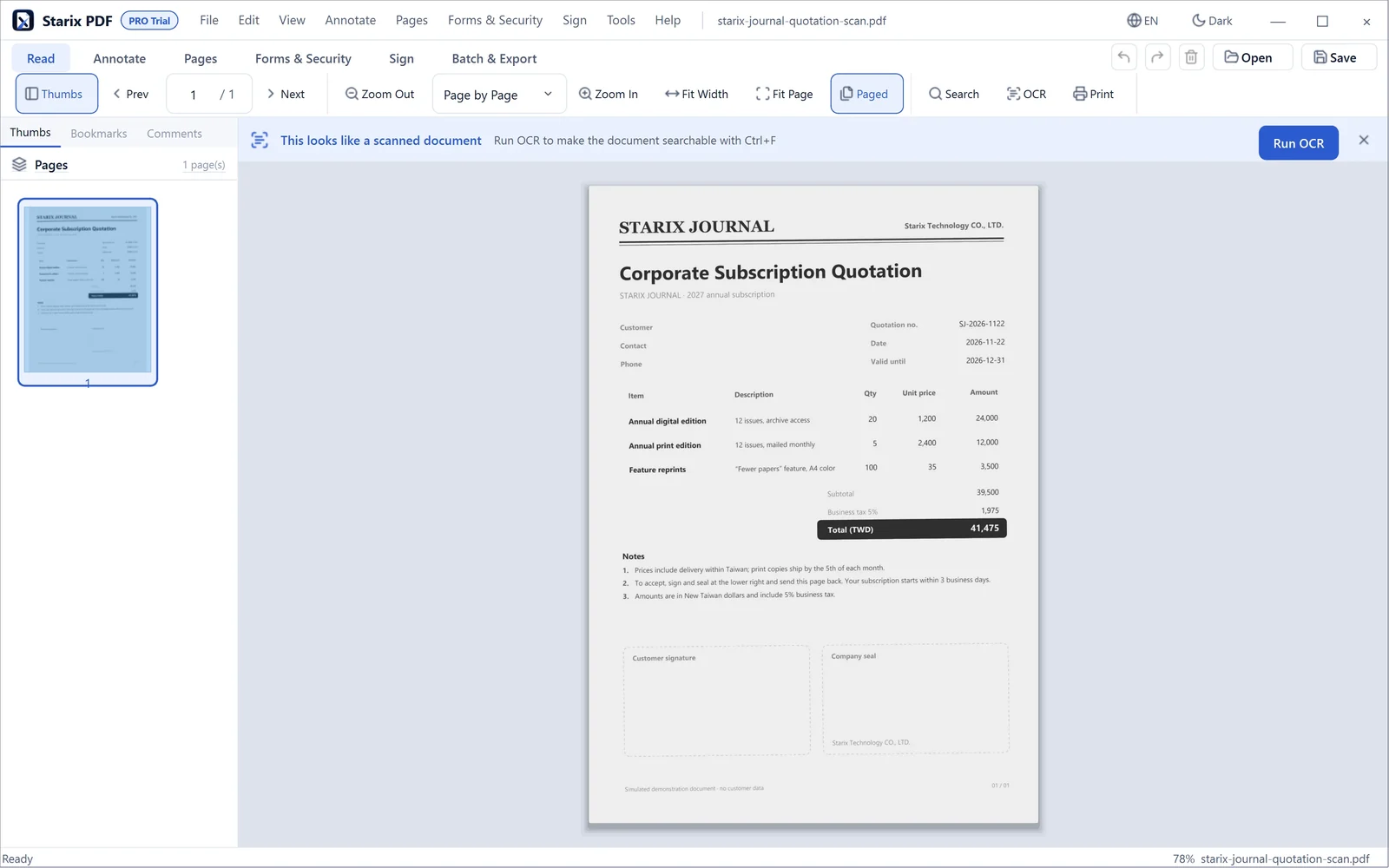
Open the scanned PDF. A bar saying This looks like a scanned document appears at the top; click Run OCR. You can also click OCR on the Read toolbar.
Real Starix PDF screen · simulated demonstration document STEP 2
Choose the document language
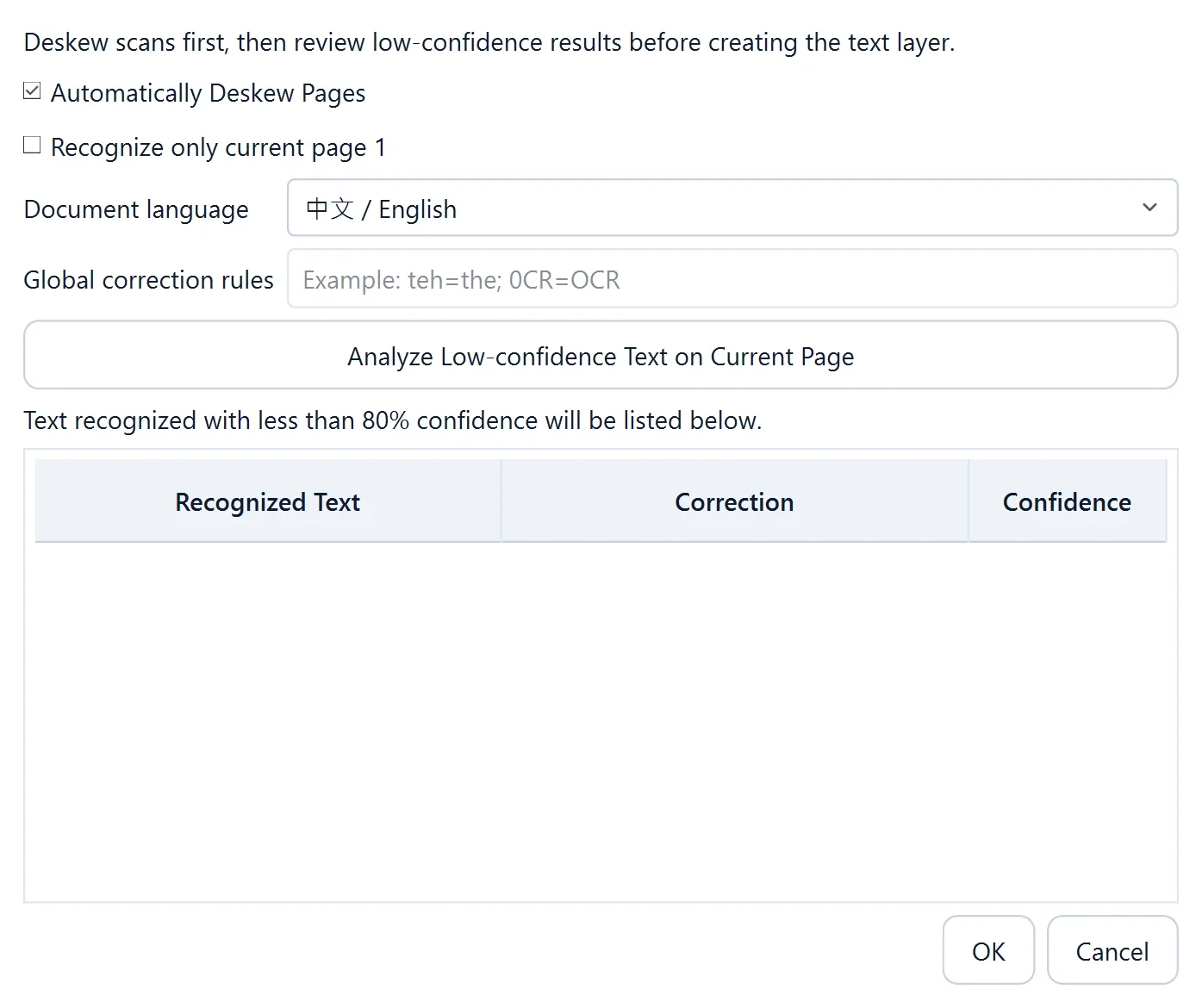
In Document language, choose the language of the document; Chinese and English documents use 中文 / English. Click OK to start.
Real Starix PDF screen · simulated demonstration document STEP 3
Search for a word
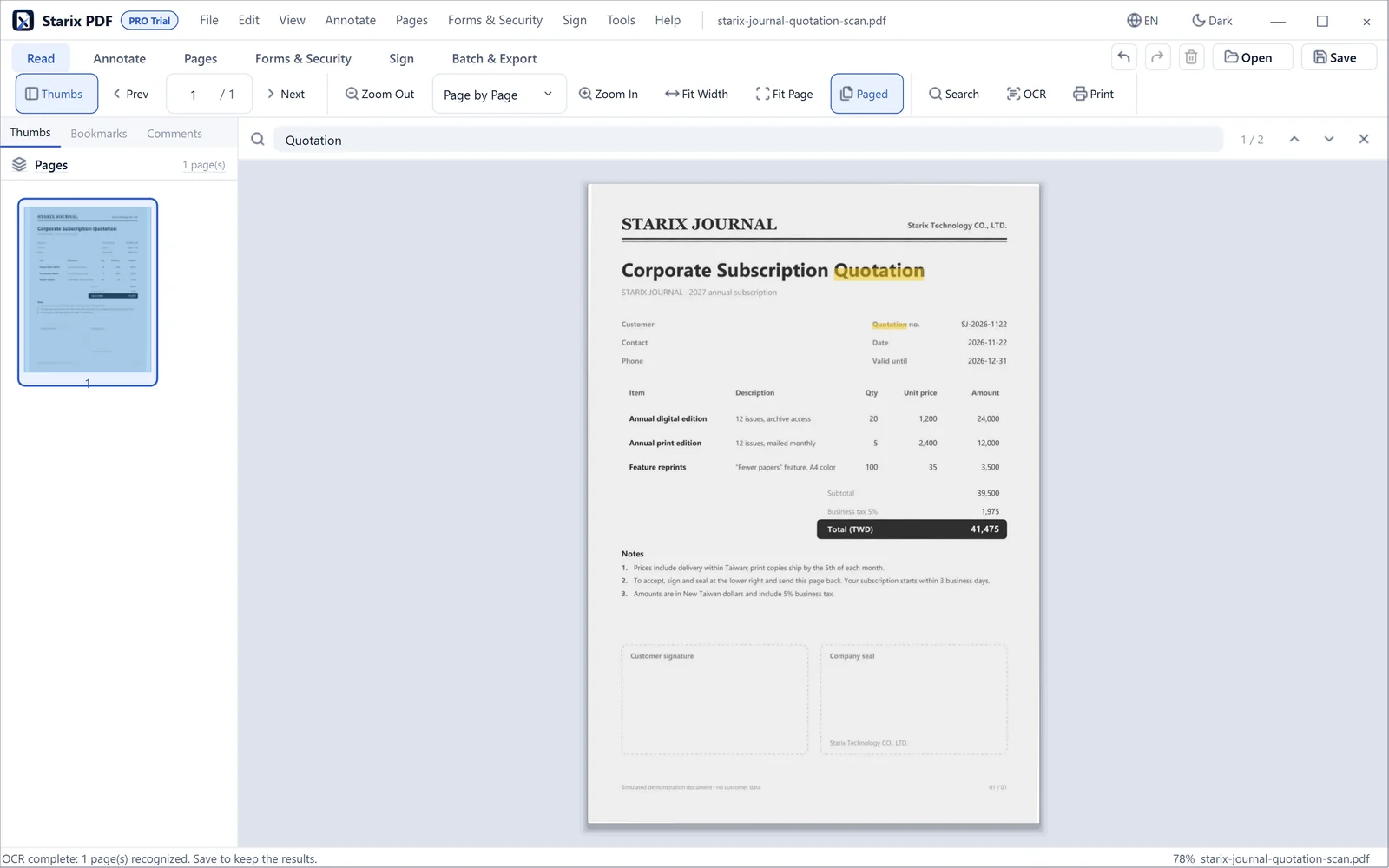
When OCR is done, press Ctrl+F and type a word from the document, such as Quotation. The matches are marked on the page.
Real Starix PDF screen · simulated demonstration document STEP 4
Save the result
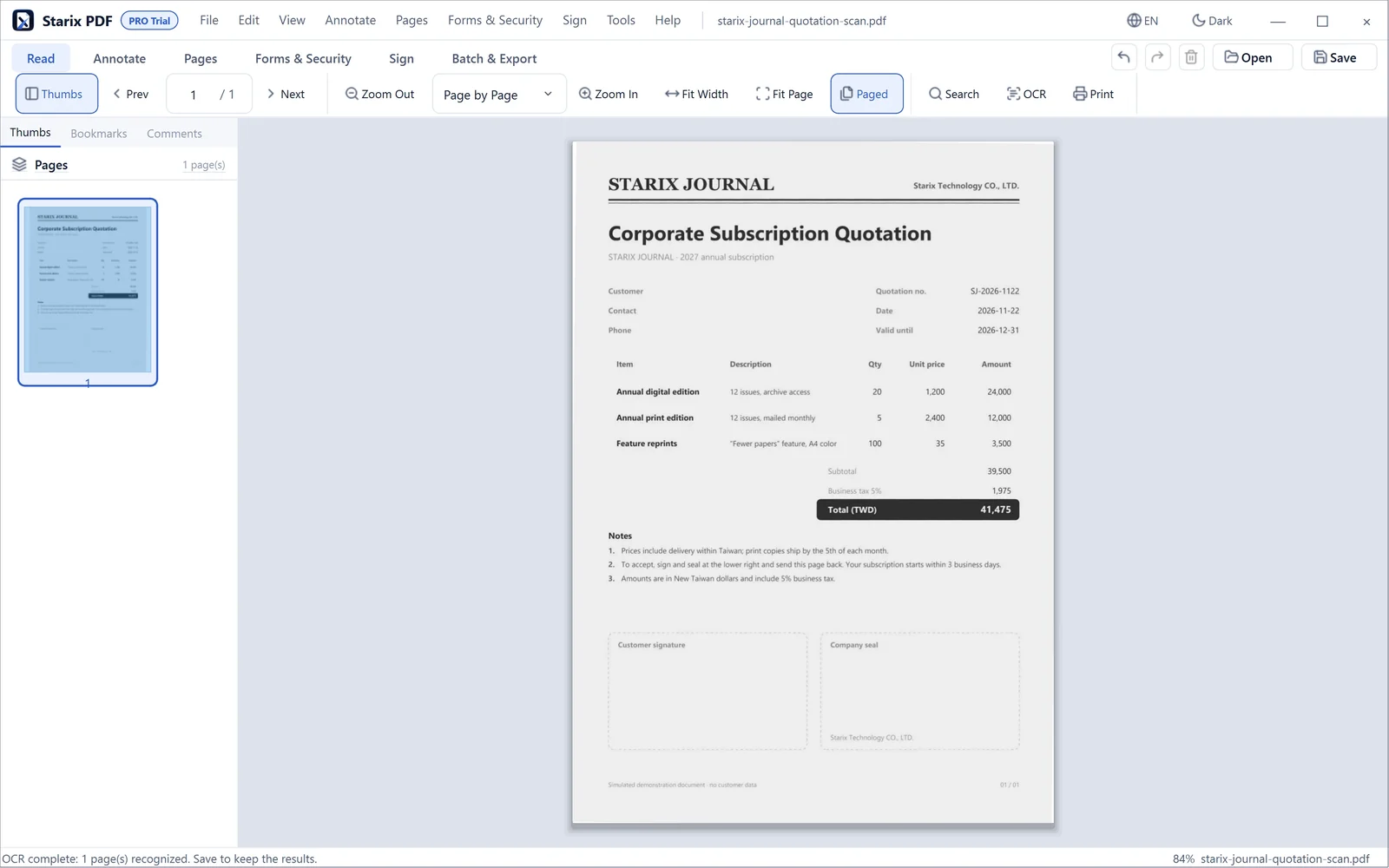
When OCR complete appears at the bottom, click Save. The recognized text is saved in the file and stays searchable the next time you open it.
Real Starix PDF screen · simulated demonstration document
For smoother recognition
Try it with the practice file
The practice file is a quotation scanned to a picture. Run OCR with the steps above, then search for Quotation or the quotation number. The practice file is for practice only.
Questions and answers
What does the page look like after OCR?
The page keeps its scanned look; the recognized text sits behind it, ready to search, select and copy.
Is my document uploaded anywhere?
OCR runs on your computer, and the document stays there.
How do I know a PDF needs OCR?
If This looks like a scanned document appears at the top when you open it, the PDF is a scanned picture; run OCR to make it searchable. A PDF whose words Ctrl+F already finds is ready to use as it is.
The words in your scans,one search away.
Download Starix PDF and run OCR on the practice file.
Download for Windows