 Starix PDF
Several PDFs,merged into one.
Put a quotation, attachments and a report into one PDF in the order you want, ready to send or file.
Pro feature · Free 14-day trial · Windows 10 / 11

Before you start
Four steps to merge PDFs
STEP 1
Choose Pages, then Merge
Open Starix PDF, choose Pages at the top, then click Merge.
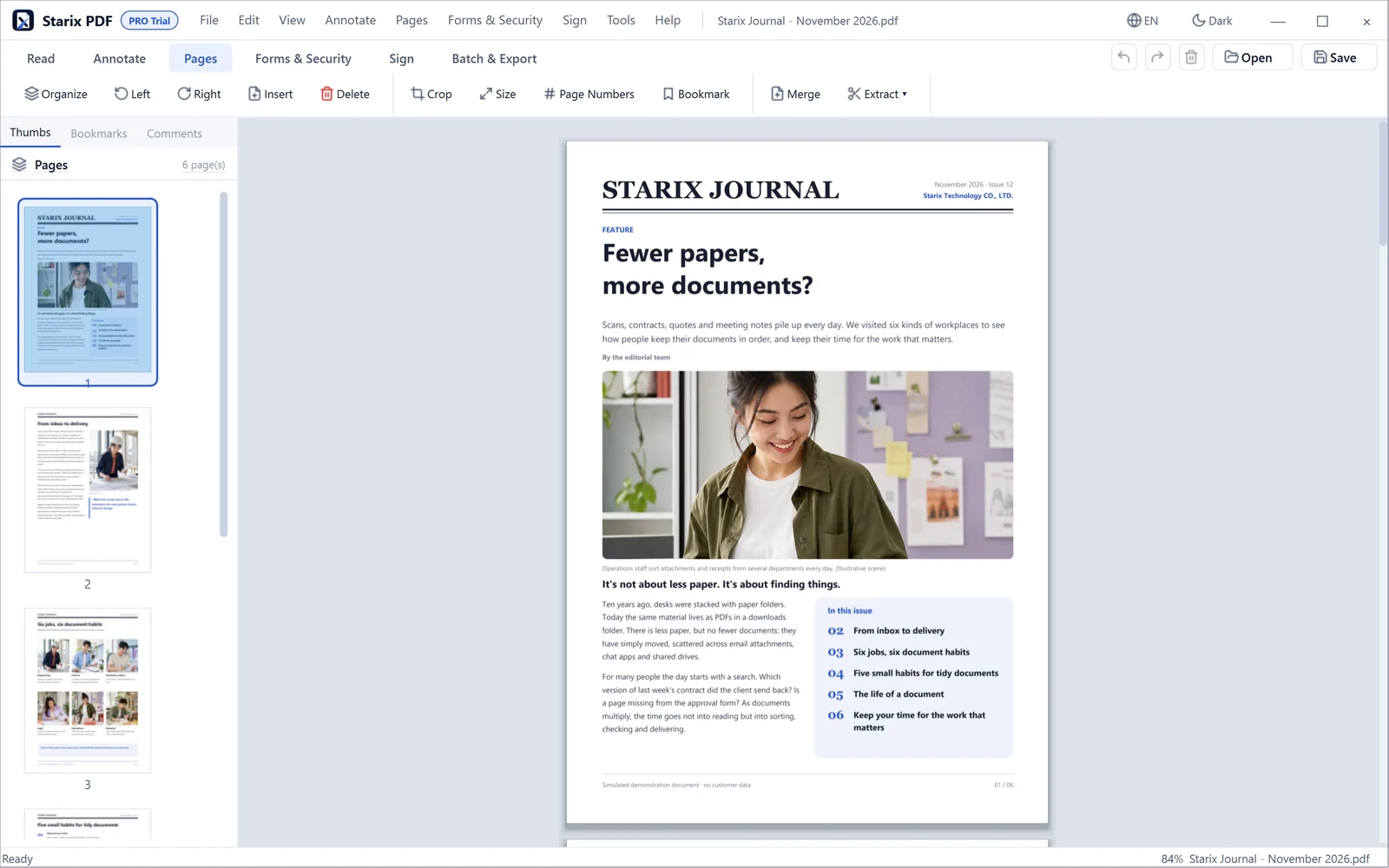
Real Starix PDF screen · simulated demonstration document STEP 2
Add the files
In Merge Files, click Add Files and pick the PDFs or images to merge; you can select several at once.
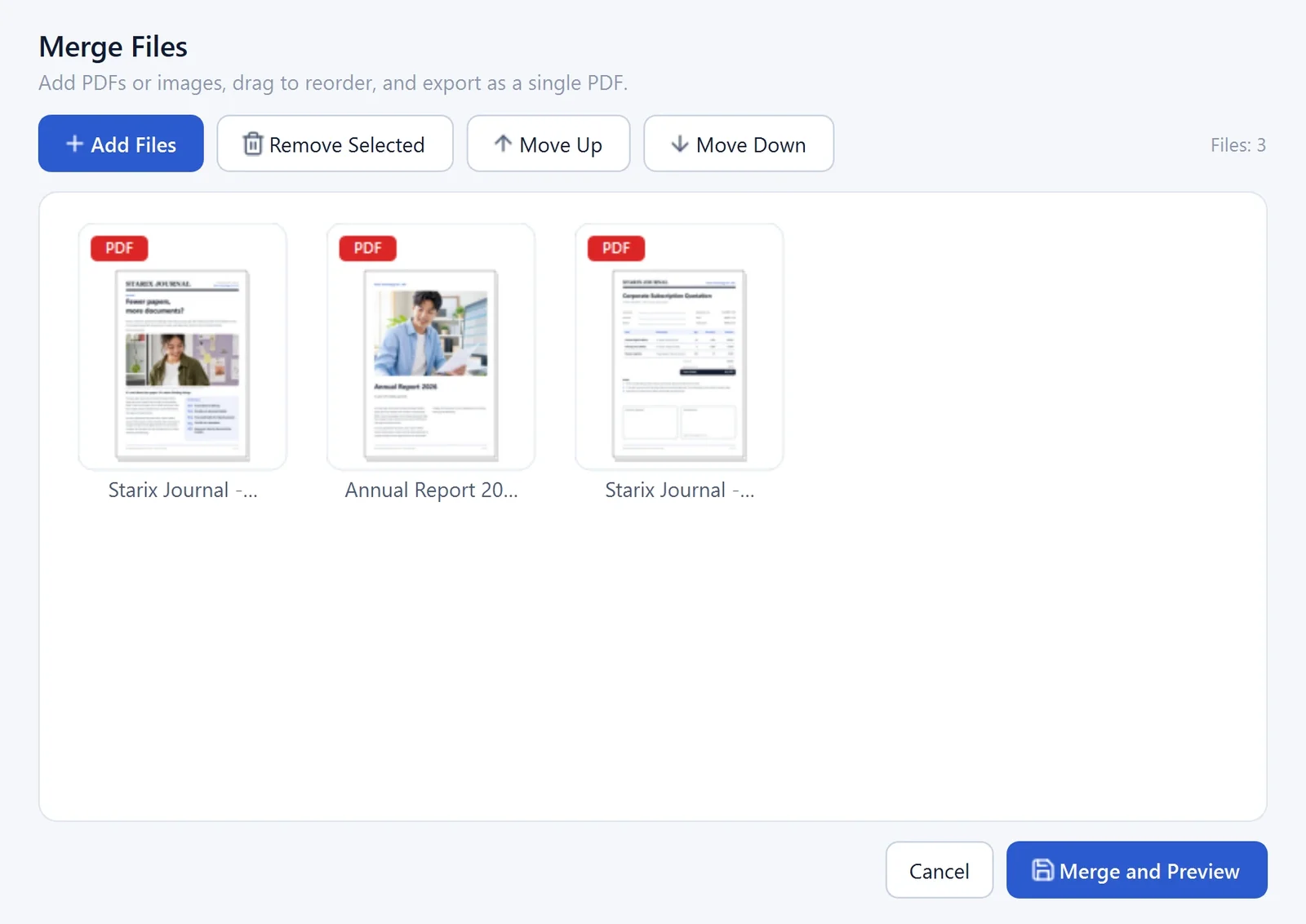
Real Starix PDF screen · simulated demonstration document STEP 3
Set the order, then Merge and Preview
Select a file and click Move Up or Move Down, or drag it into place. Then click Merge and Preview.
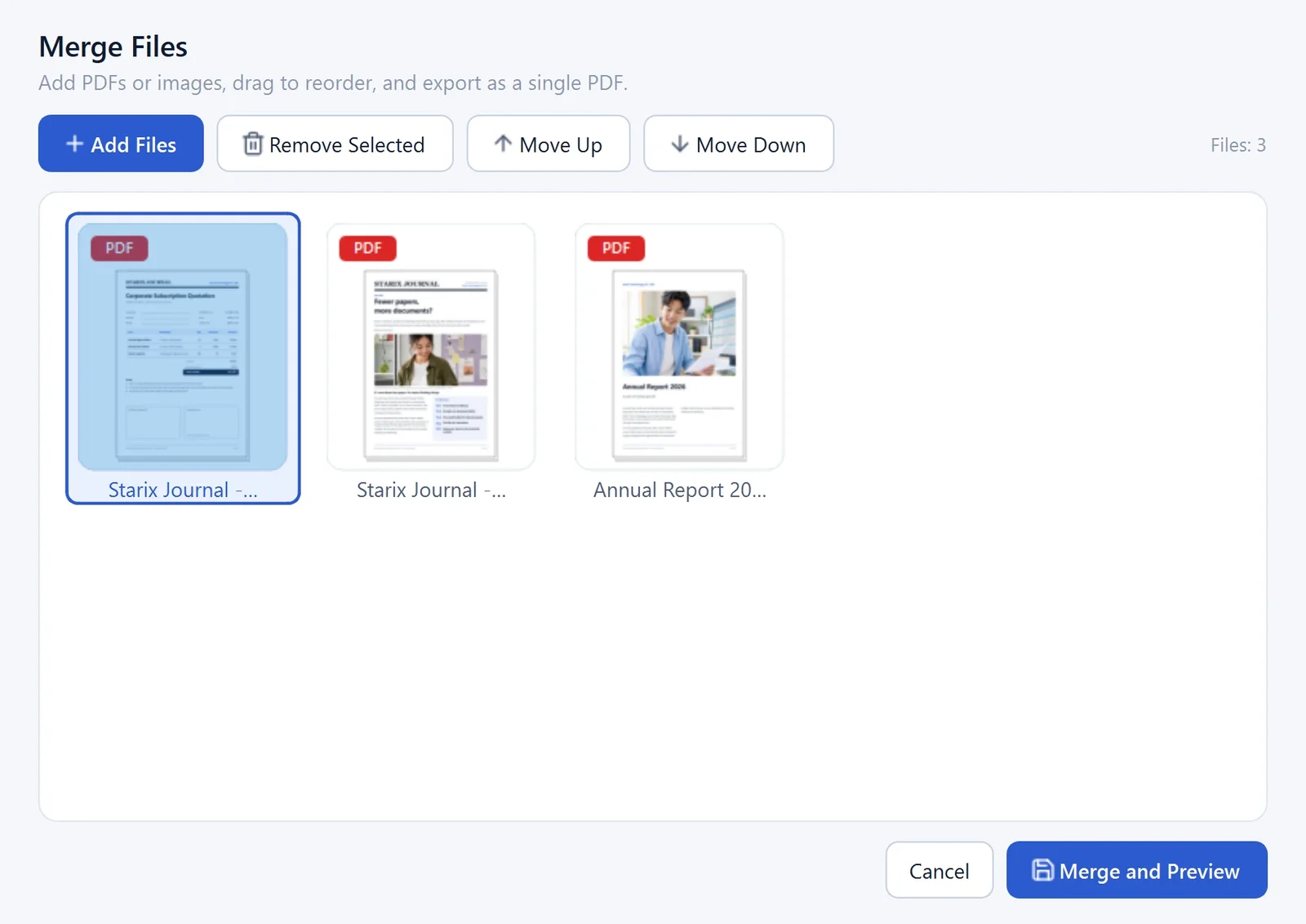
Real Starix PDF screen · simulated demonstration document STEP 4
Check the pages and save
The merged file opens in a new tab. Check each page in the thumbnails on the left, then click Save and choose where to keep it.
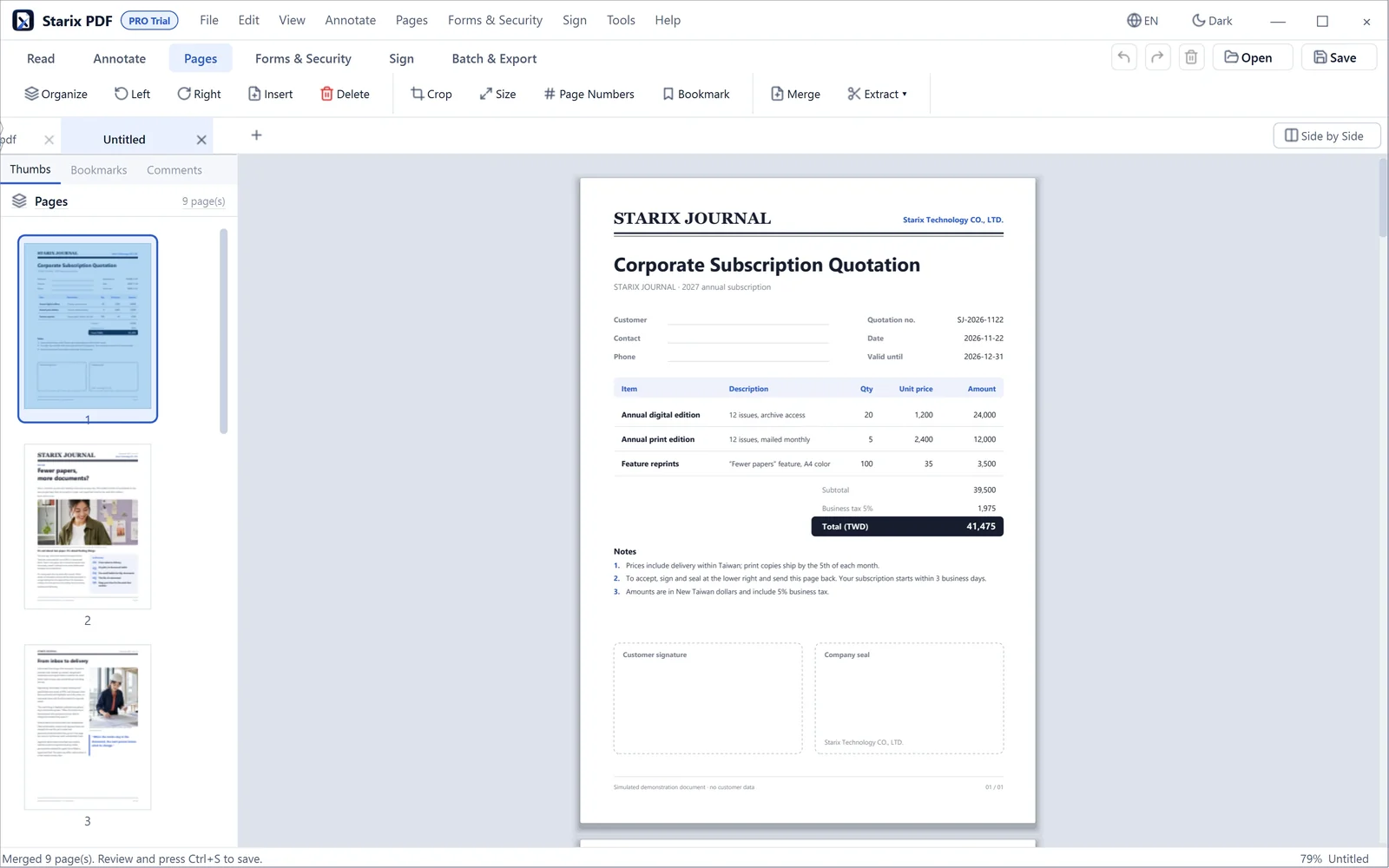
Real Starix PDF screen · simulated demonstration document
Practice with sample files
Download the three sample PDFs and merge them with the steps above. The sample files are for practice only.
Questions and answers
Can I merge images?
Yes. Choose JPG or PNG images in Add Files; each image becomes one page.
Can I change the pages after merging?
Yes. In the new tab, use Organize or Delete in Pages, or turn pages with Left and Right, then save.
What happens to the original files?
The merged result is saved as a new file; the originals stay as they are.
Your next set of attachments,merged with Starix PDF.
Download Starix PDF and start merging PDFs.
Download for Windows