 Starix PDF
Phone photos of documents,one tidy PDF.
Pick the images, put them in order and choose a page size to get one PDF with even pages.
Pro feature · Free 14-day trial · Windows 10 / 11

Before you start
Four steps from images to PDF
STEP 1
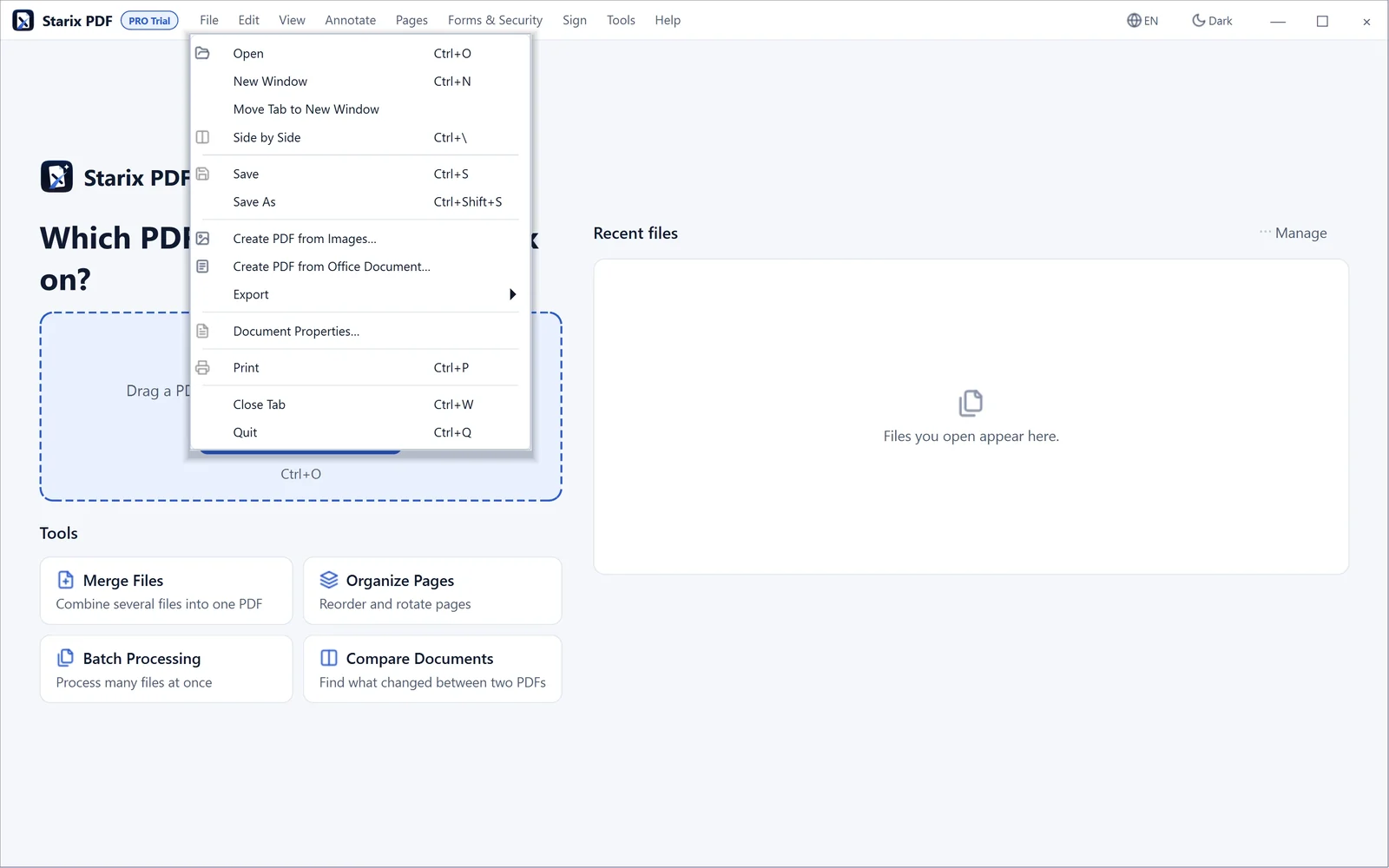
Choose Create PDF from Images…
Click File at the top, choose Create PDF from Images…, then select the images.
Real Starix PDF screen · simulated demonstration document STEP 2
Put the pages in order
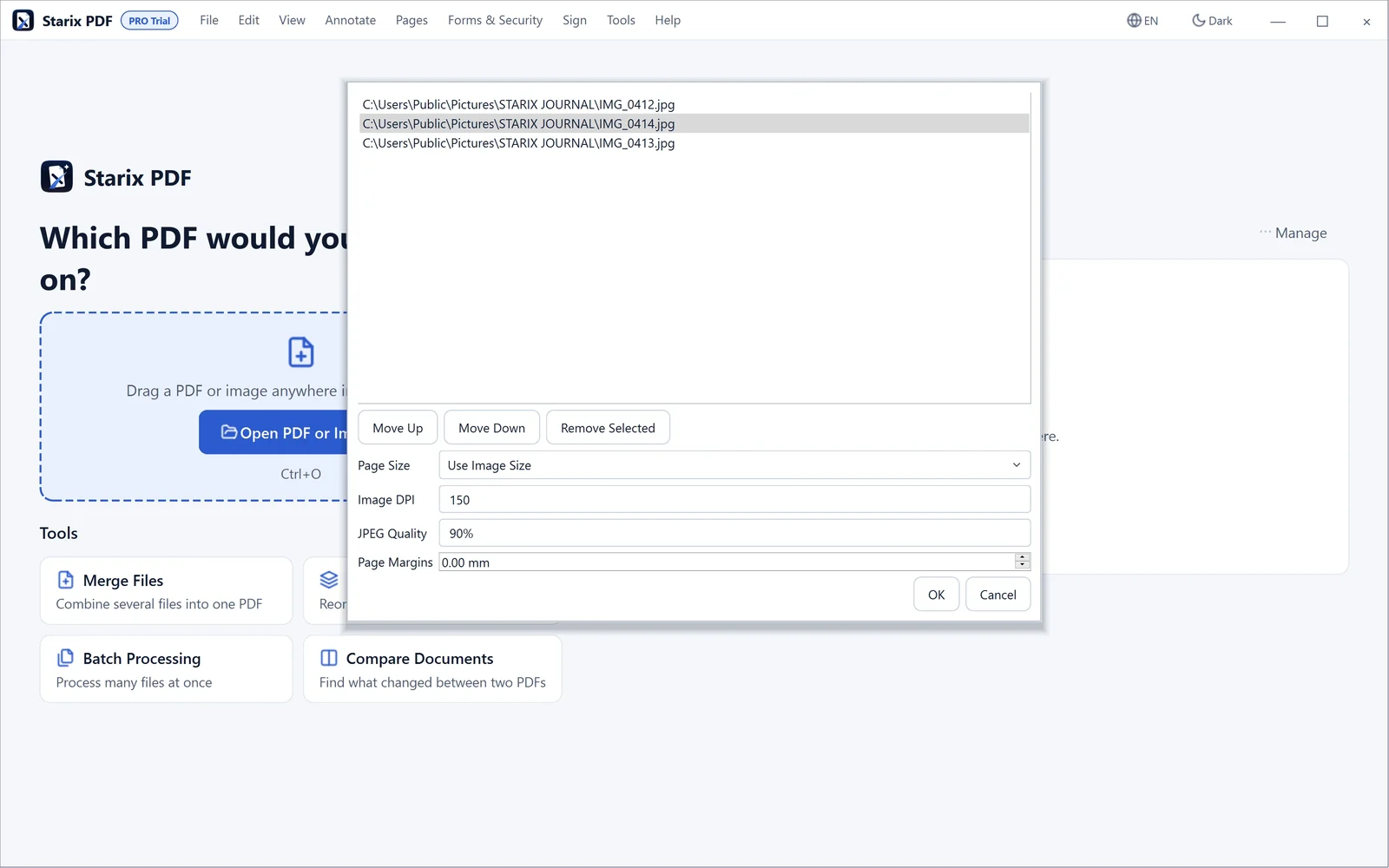
The Image-to-PDF Settings window lists the images in order. Select one and click Move Up or Move Down.
Real Starix PDF screen · simulated demonstration document STEP 3
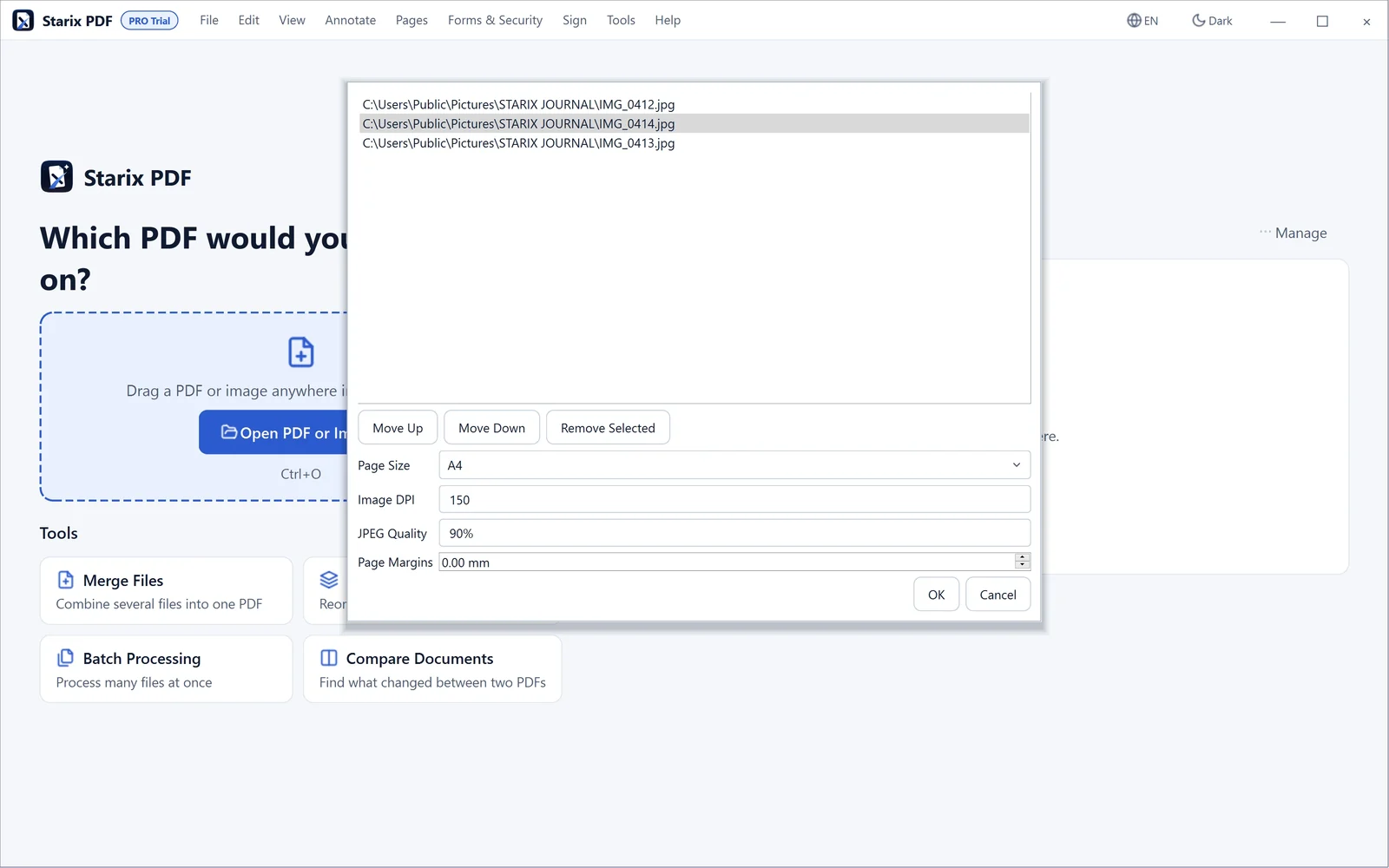
Choose the page size
Set Page Size to A4, click OK, then choose where to save.
Real Starix PDF screen · simulated demonstration document STEP 4
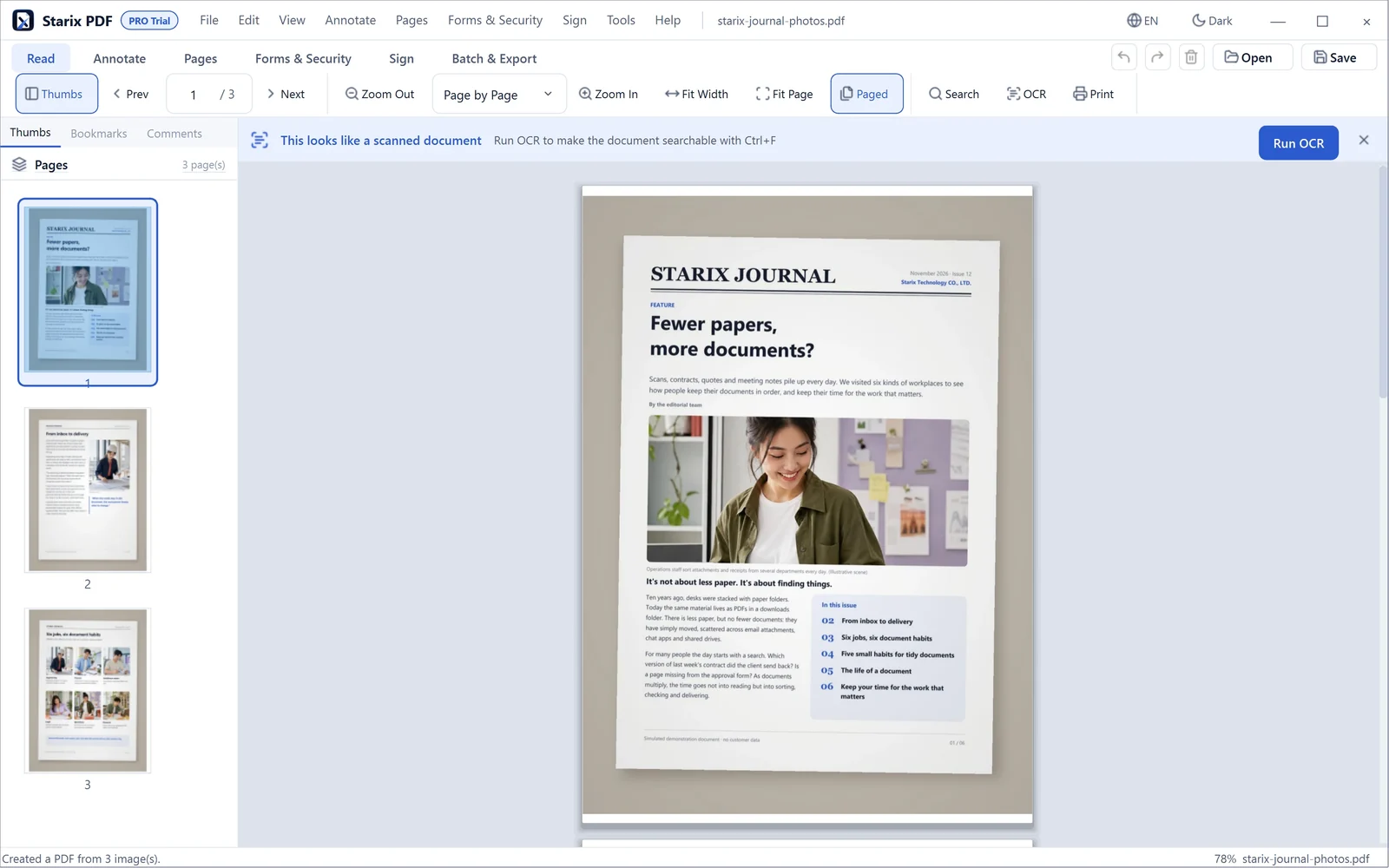
Check the new PDF
The new PDF opens in its own tab, with the thumbnails on the left in the order you chose.
Real Starix PDF screen · simulated demonstration document
Try it with the practice photos
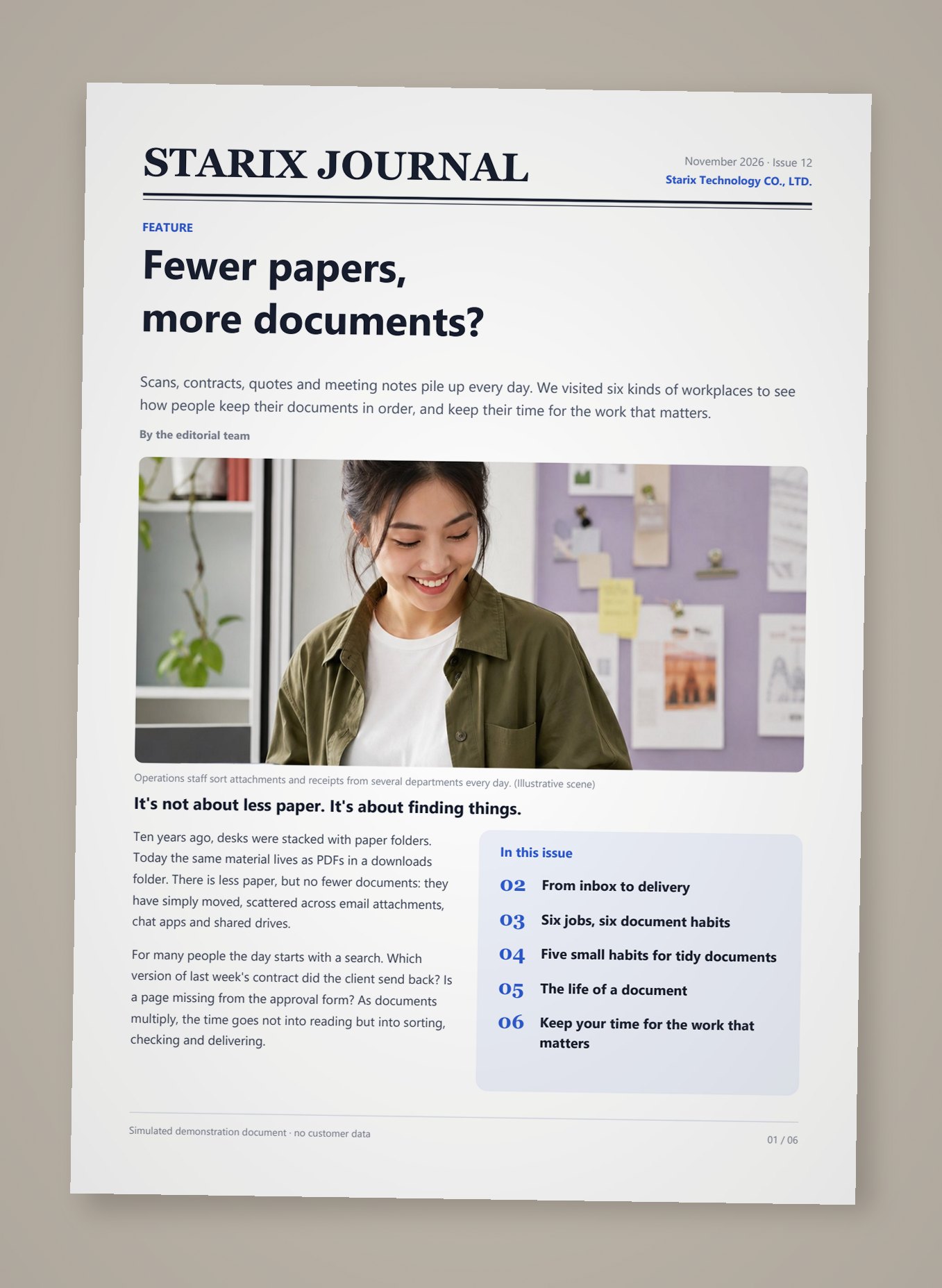
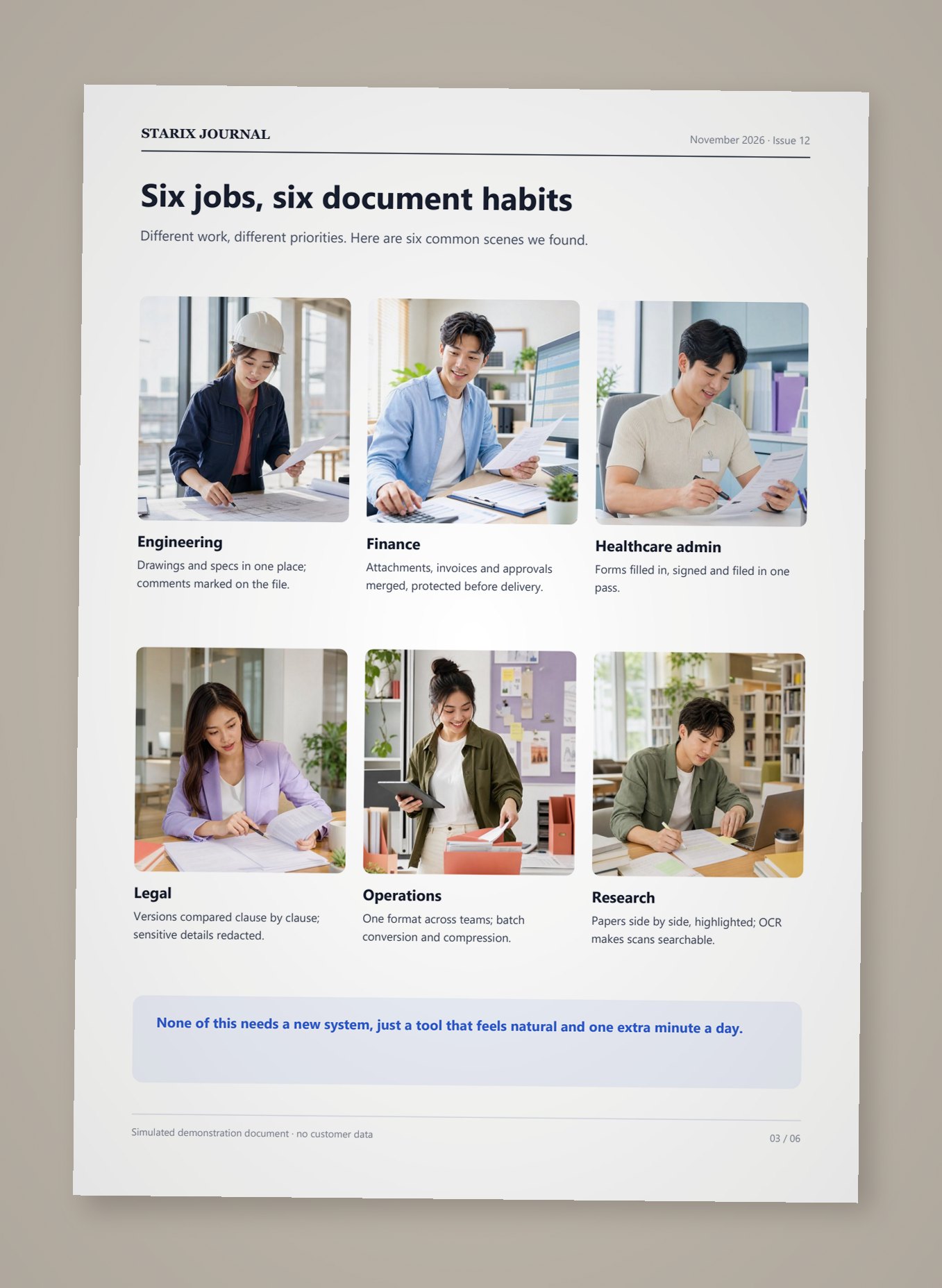
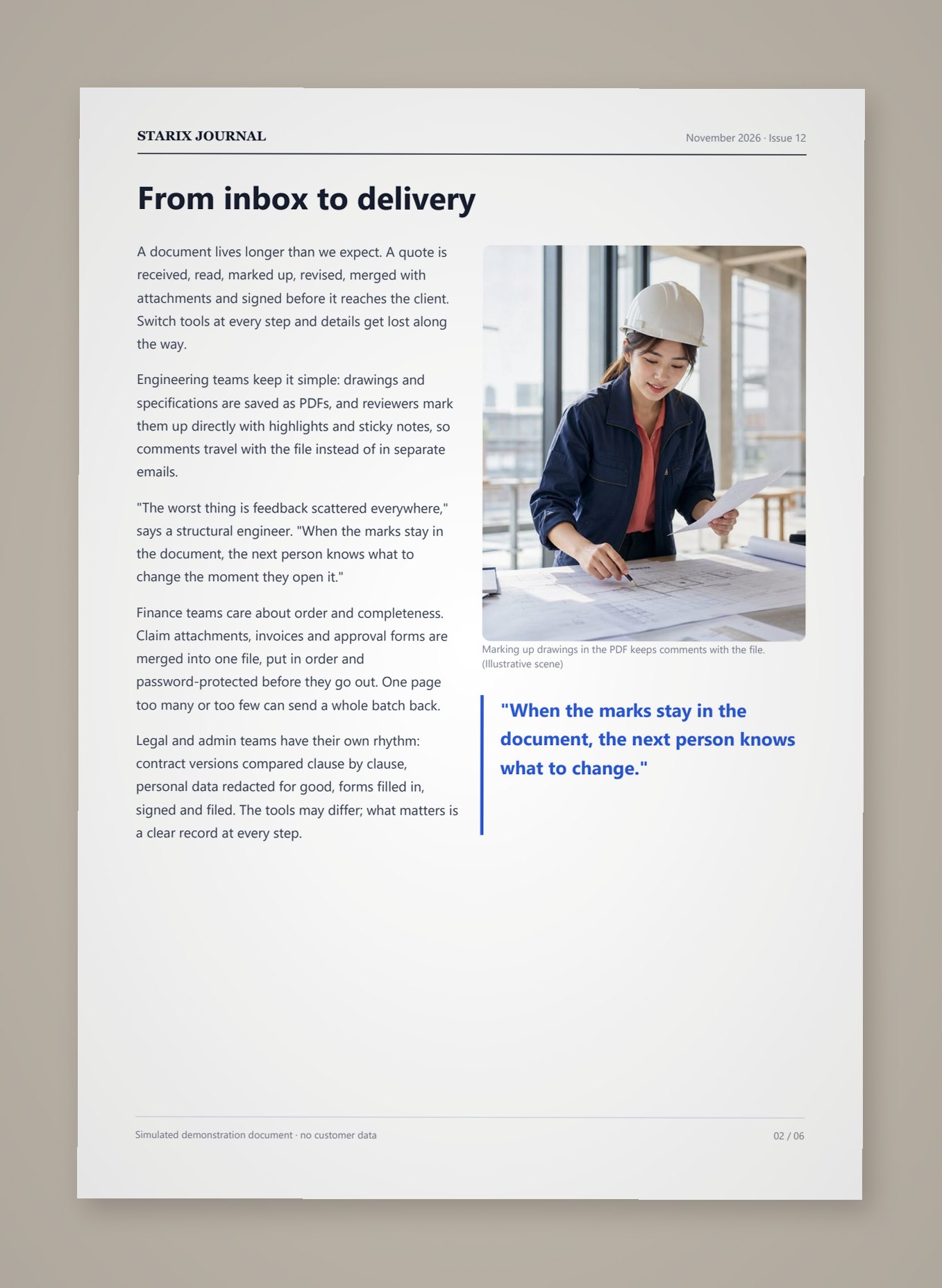
The practice files are three phone photos of STARIX JOURNAL pages. By file name they are pages 1, 3 and 2; put them in order with the steps above. The practice files are for practice only.
Questions and answers
Does each image become one page?
Yes, one image per page, sized by the Page Size setting.
What if a photo is sideways?
After making the PDF, choose Pages and click Right to turn the page.
What if the file is too large?
Lower Image DPI or JPEG Quality in the window and make the PDF again.
Photos and scans,together in one PDF.
Download Starix PDF and turn the practice photos into a PDF.
Download for Windows