 Starix PDF
Highlight and comment,free.
Mark what matters in a contract or report and jot your thoughts on a note; it is all there next time you open it.
Included in the free version · Windows 10 / 11

Before you start
Four steps to highlight and comment
STEP 1
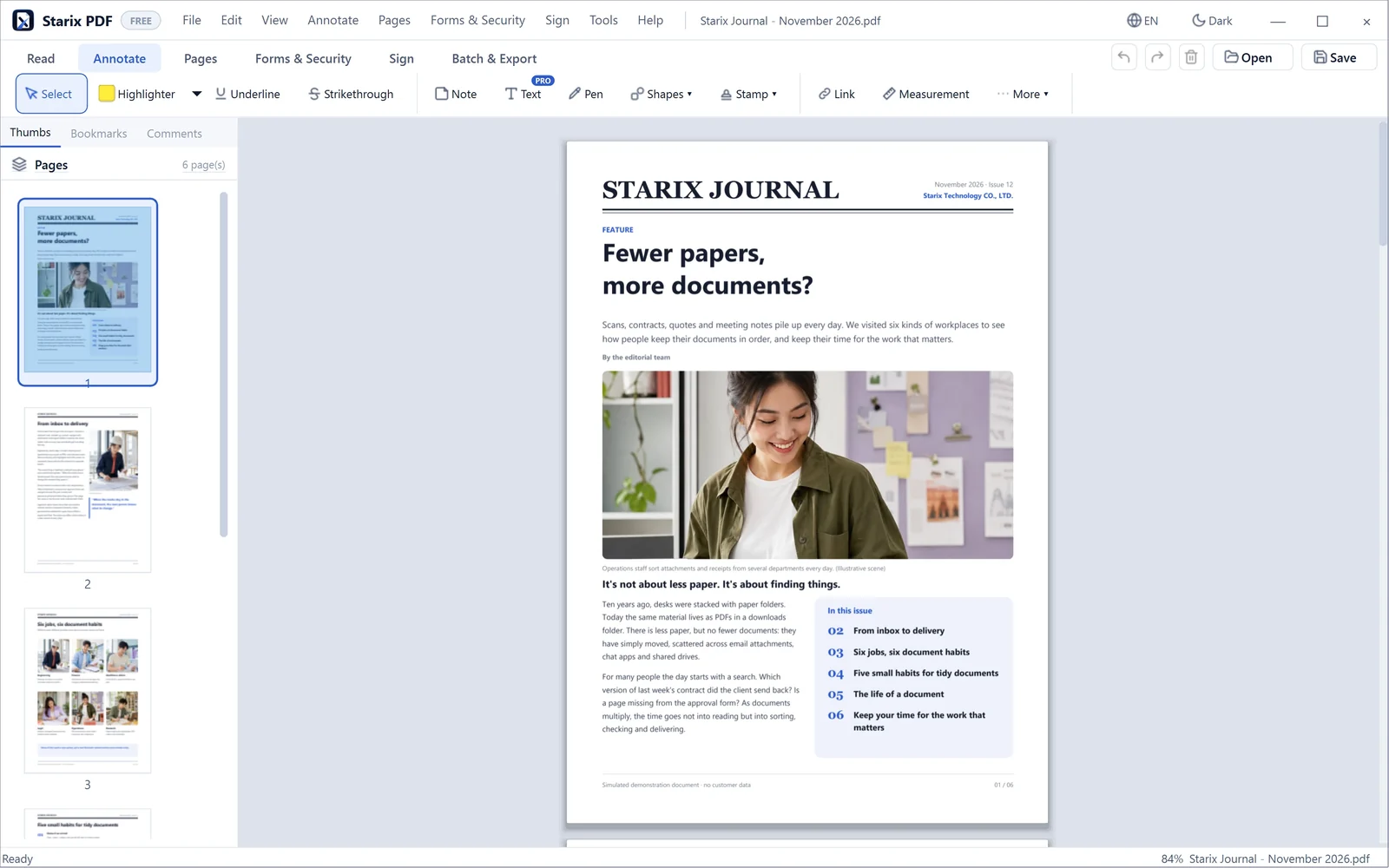
Choose Annotate
Open the PDF and choose Annotate at the top; Highlighter and Note are in this row.
Real Starix PDF screen · simulated demonstration document STEP 2
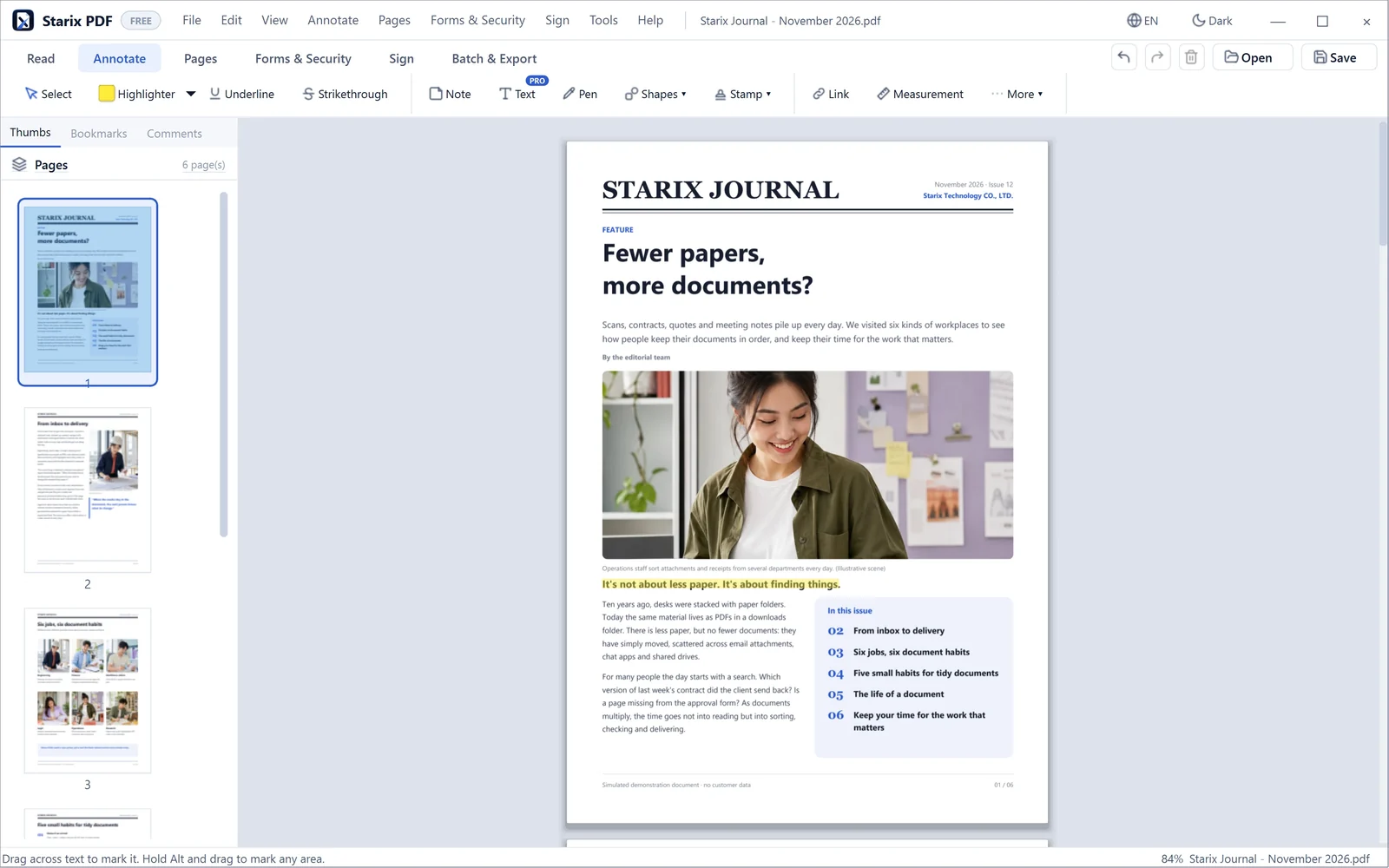
Drag the Highlighter over text
Click Highlighter and drag from the start of a sentence to its end; the colour follows the lines of text. Click the arrow beside it to change colour.
Real Starix PDF screen · simulated demonstration document STEP 3
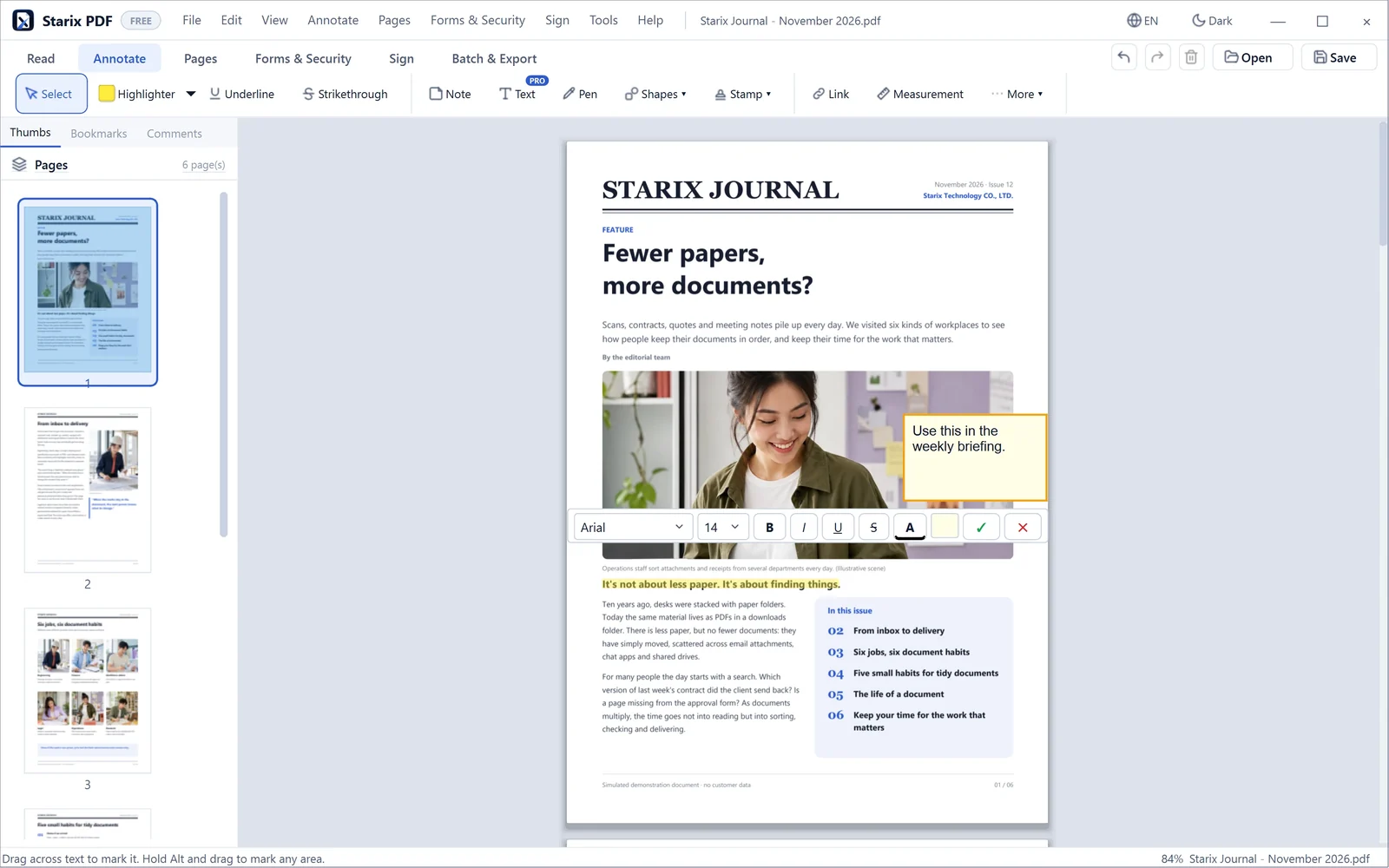
Add a note
Click Note, click the page and type your comment; click outside the note when you are done.
Real Starix PDF screen · simulated demonstration document STEP 4
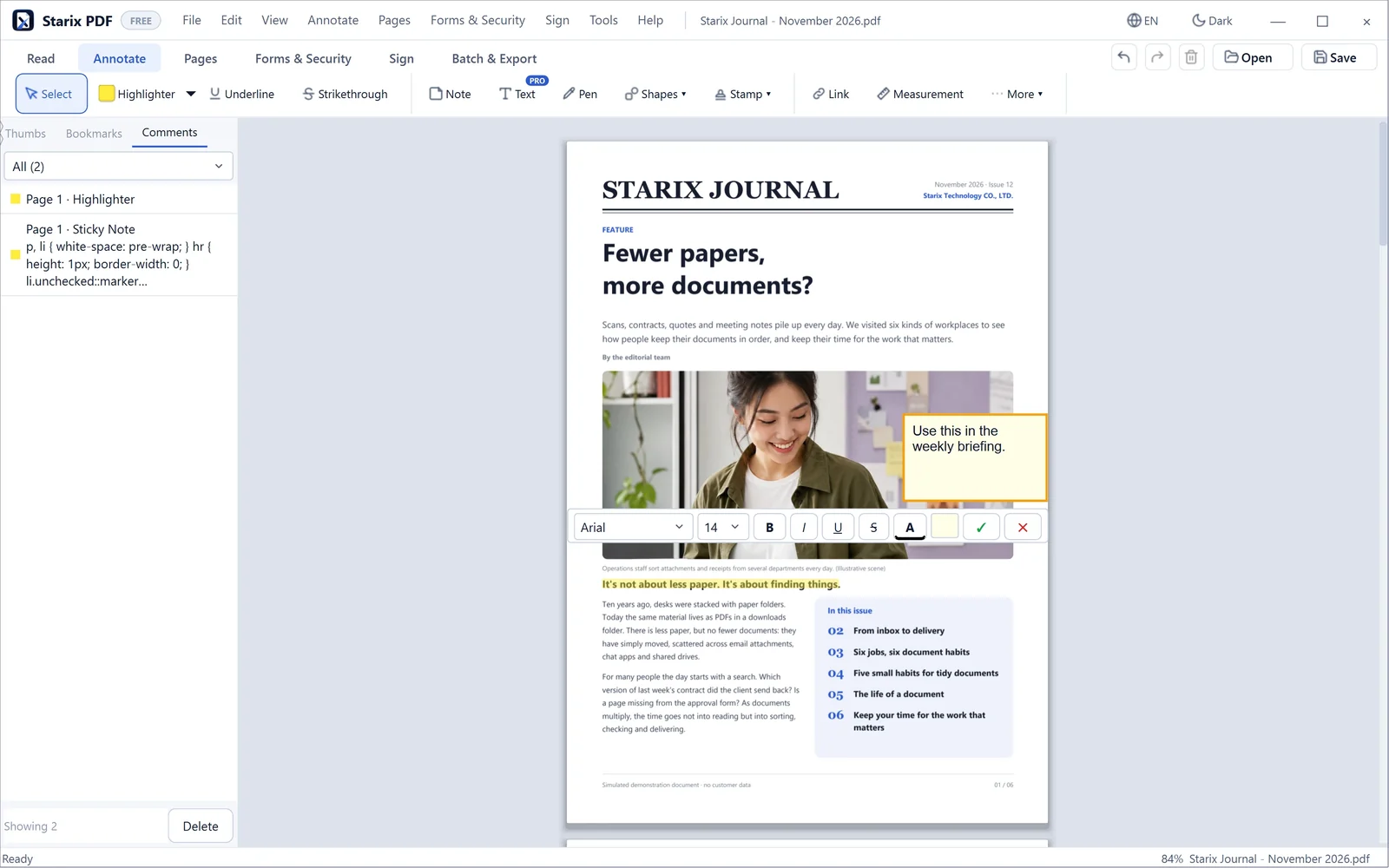
Save, then edit any time
Click Save. The Comments tab on the left lists every highlight and note, and you can move, edit or delete them whenever you reopen the file.
Real Starix PDF screen · simulated demonstration document
Practice with a sample file
Download the sample STARIX JOURNAL issue and highlight and comment with the steps above. The sample file is for practice only.
Questions and answers
Is this in the free version?
Yes. The Highlighter and Note are in the free version, ready after installing.
Can people using other PDF apps see them?
Yes. Highlights and notes are saved as standard PDF annotations, so other PDF readers show them too.
Can I change the highlighter colour?
Yes. Click the arrow beside Highlighter and pick a colour; new highlights use it.
What you marked,still there next time.
Download the free version of Starix PDF and start highlighting.
Download for Windows