 Starix PDF
Fill in PDF formsright on your computer.
Type every field and tick what you need in the Fill Form window; save, and the filled PDF is ready.
Pro feature · Free 14-day trial · Windows 10 / 11

Before you start
Four steps to a filled form
STEP 1
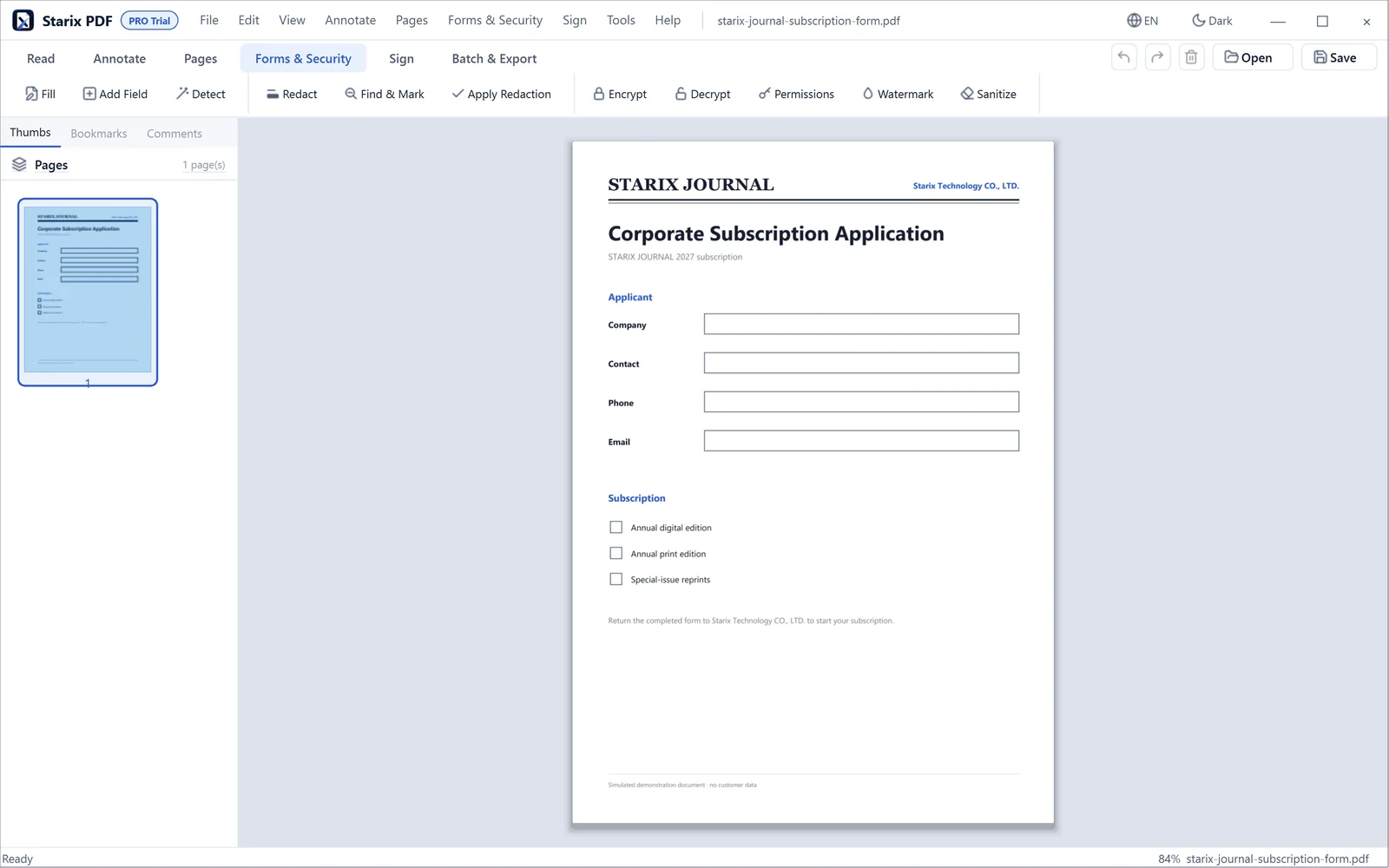
Choose Forms & Security, then Fill
Open the PDF form, choose Forms & Security at the top, then click Fill.
Real Starix PDF screen · simulated demonstration document STEP 2
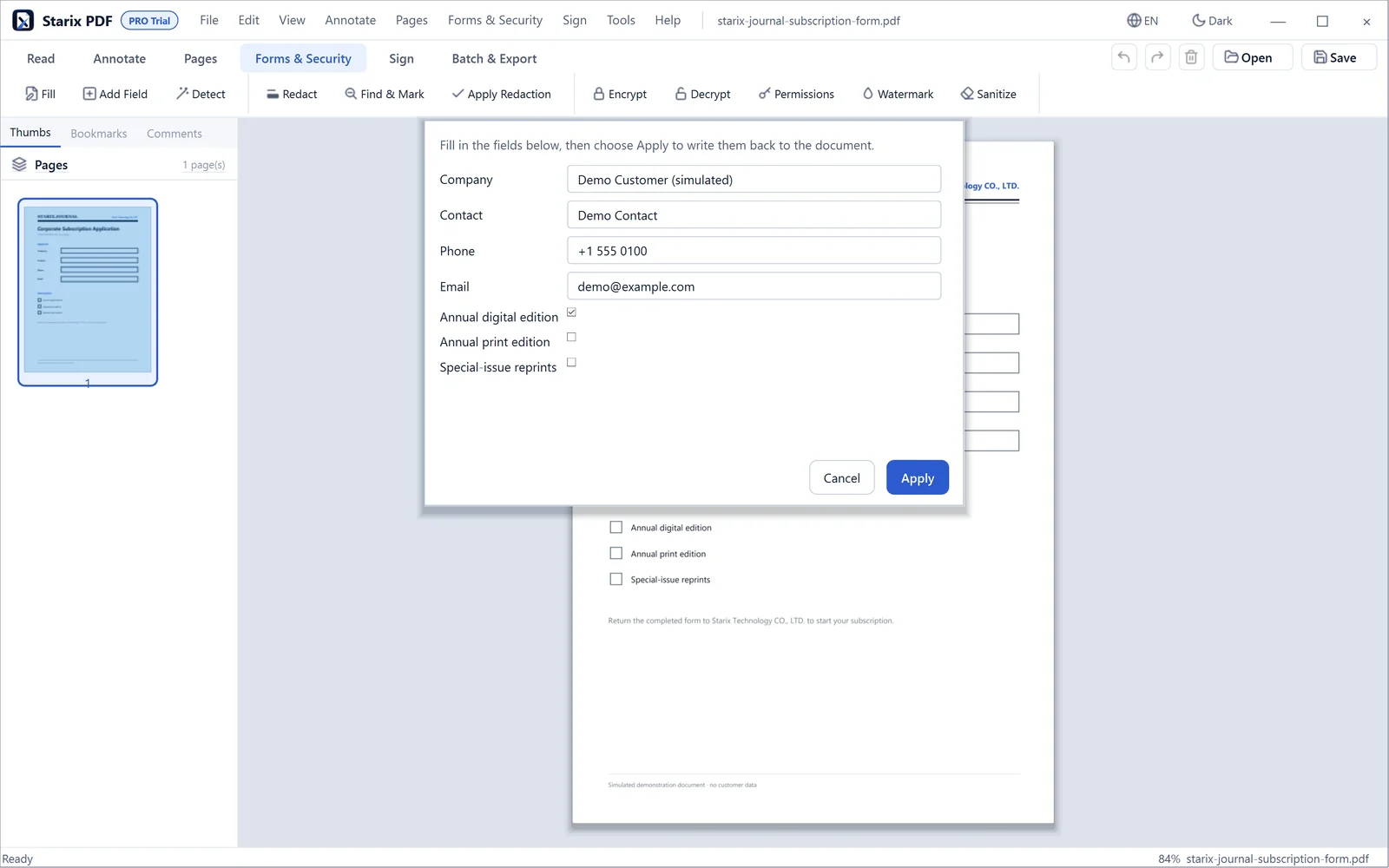
Fill in the fields
The window lists every field of the form. Type the text, tick what you need, then click Apply.
Real Starix PDF screen · simulated demonstration document STEP 3
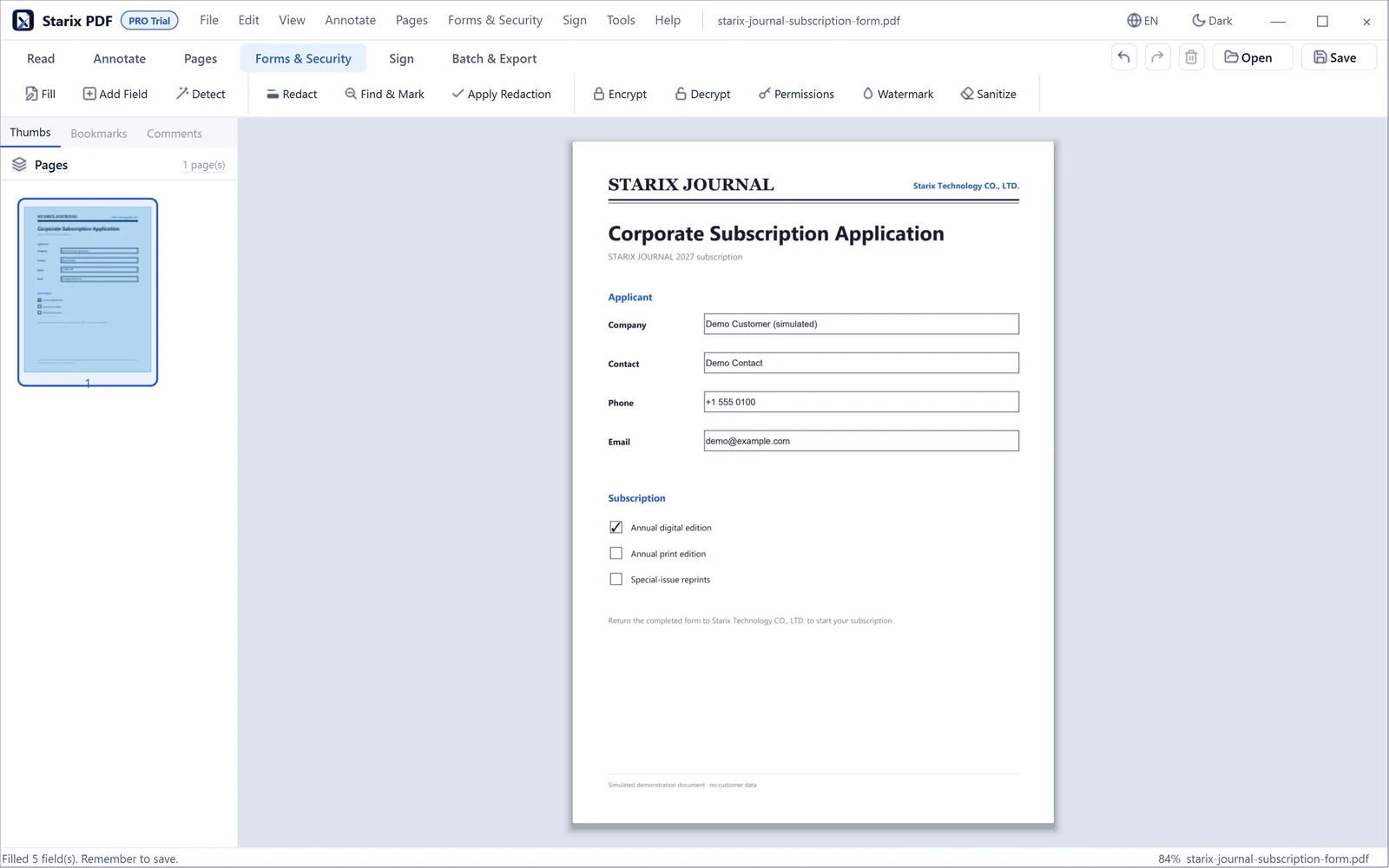
Save the file
The filled-in details show on the page. Check them, then click Save at the top right.
Real Starix PDF screen · simulated demonstration document STEP 4
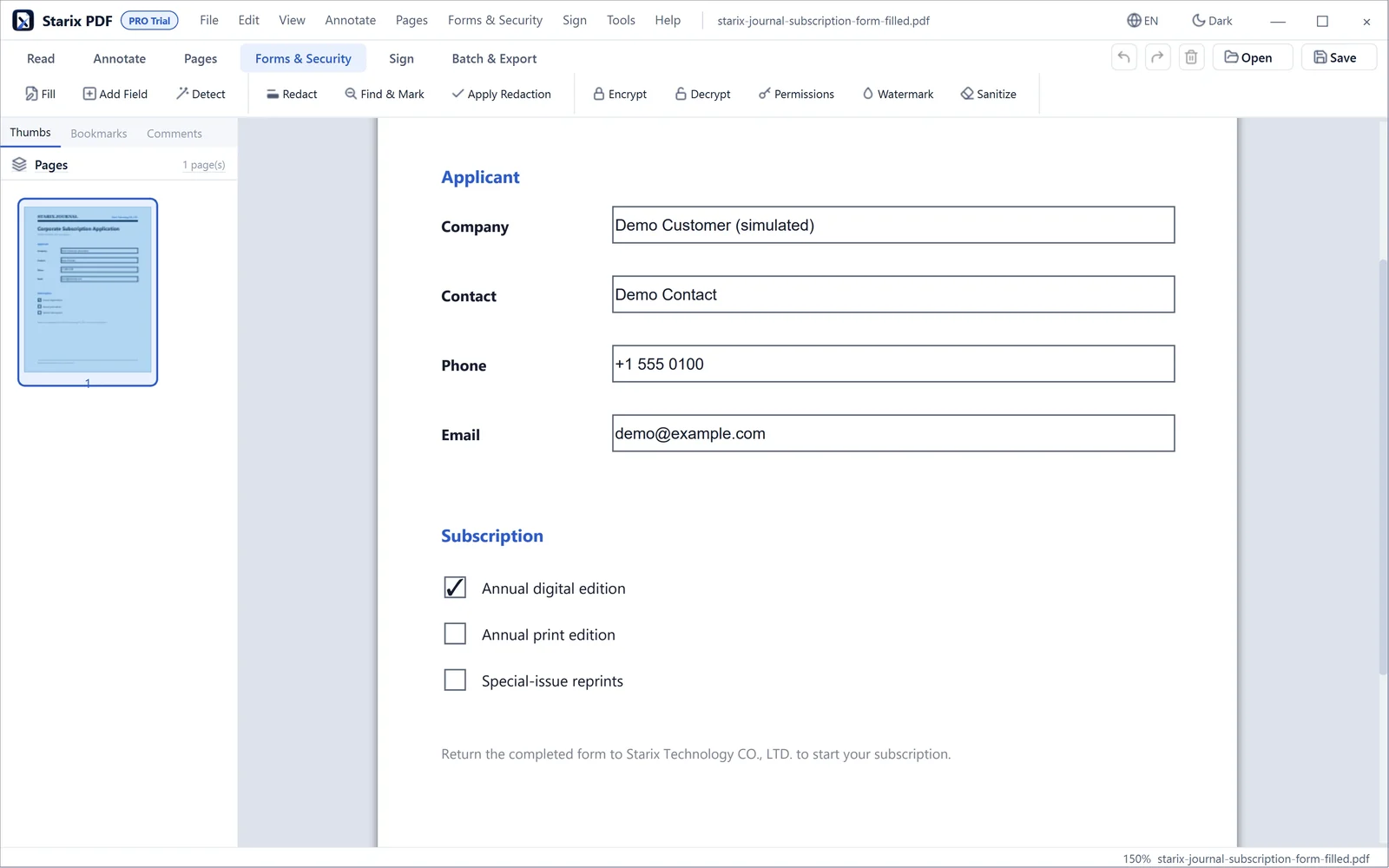
Check the filled form
The saved file keeps everything you typed and ticked, ready to send or upload.
Real Starix PDF screen · simulated demonstration document
Try it with the practice file
The practice file is the STARIX JOURNAL subscription application, with four text fields and three check boxes. Fill it in with the steps above. The practice file is for practice only.
Questions and answers
What if I type something wrong?
Click Fill again to change it, or press Ctrl+Z.
What if the form has no fields to fill?
Choose Annotate and type on the page with the Text tool.
Can I change the details later?
Yes. Open the saved file and click Fill; the window shows what is filled in now.
Fill in the form here,and it is ready to hand in.
Download Starix PDF and fill in the practice form.
Download for Windows