 Starix PDF
Need just a few pages?Save them as a new file.
Type a page range and those pages are saved as a new PDF; the original file stays as it is.
Pro feature · Free 14-day trial · Windows 10 / 11

Before you start
Four steps to extract pages
STEP 1
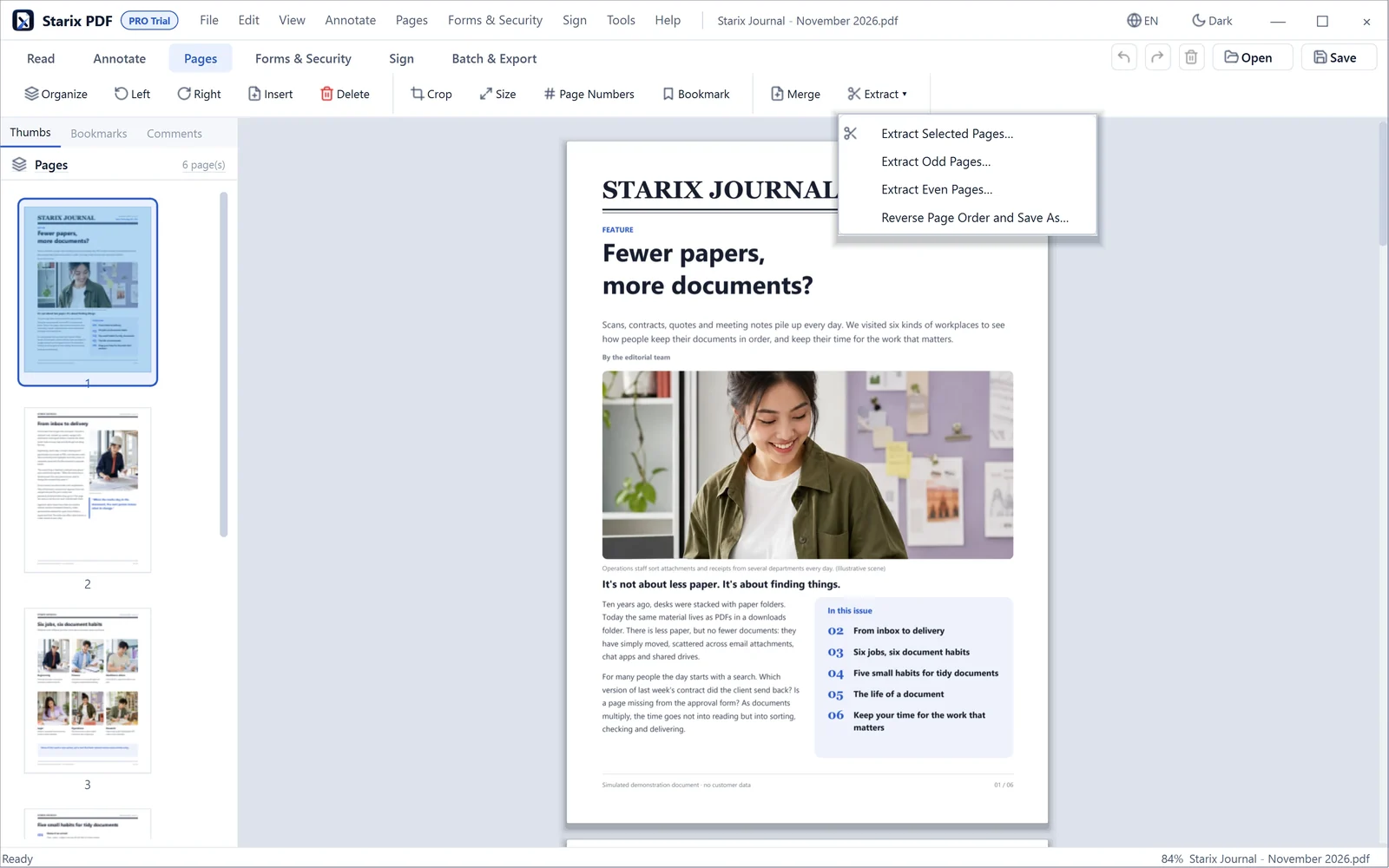
Click Extract > Extract Selected Pages…
Open the PDF, choose Pages at the top, click Extract and choose Extract Selected Pages…
Real Starix PDF screen · simulated demonstration document STEP 2
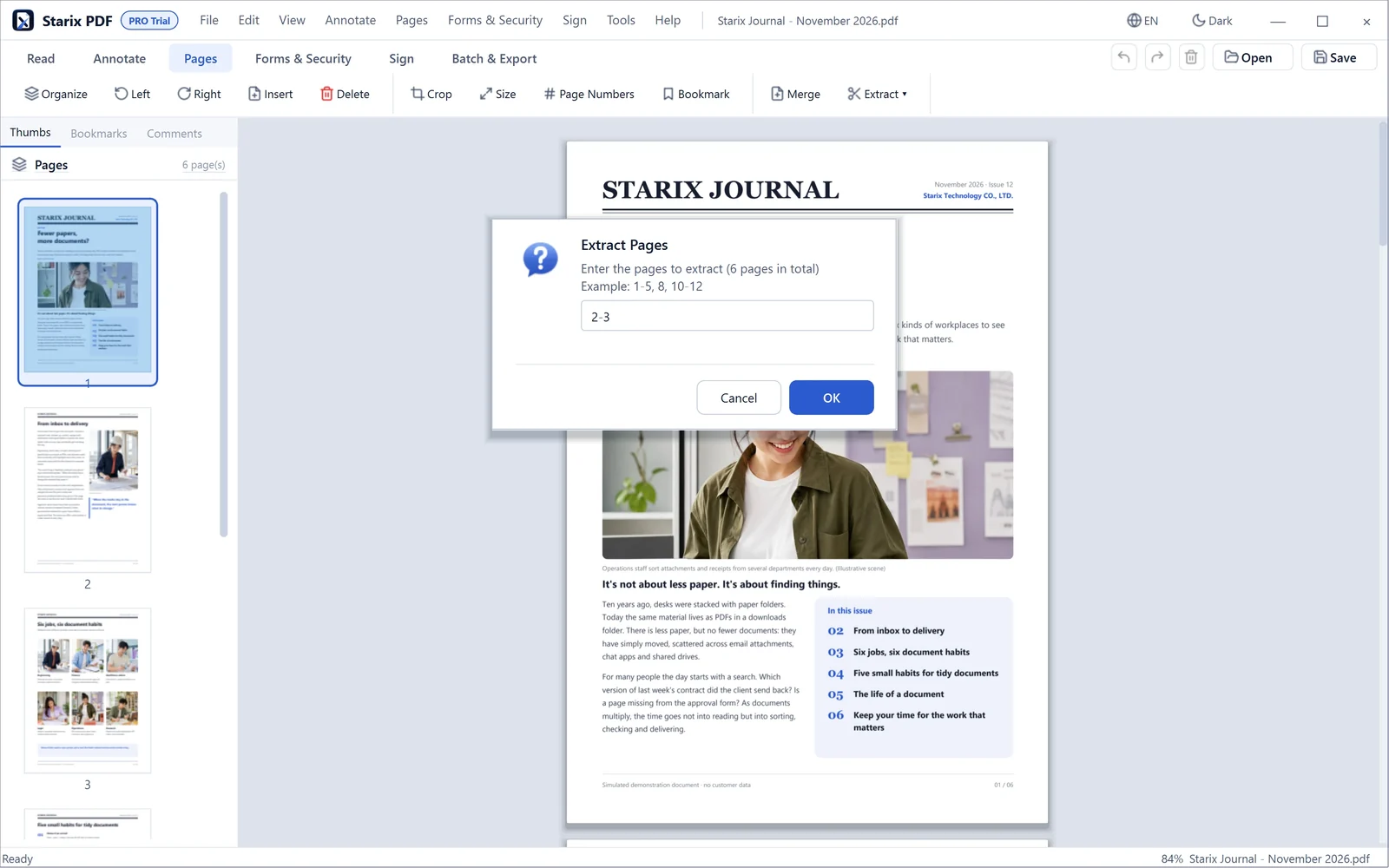
Type the page range
Type the pages to keep, such as 2-3, with commas between ranges. Click OK, then choose where to save.
Real Starix PDF screen · simulated demonstration document STEP 3
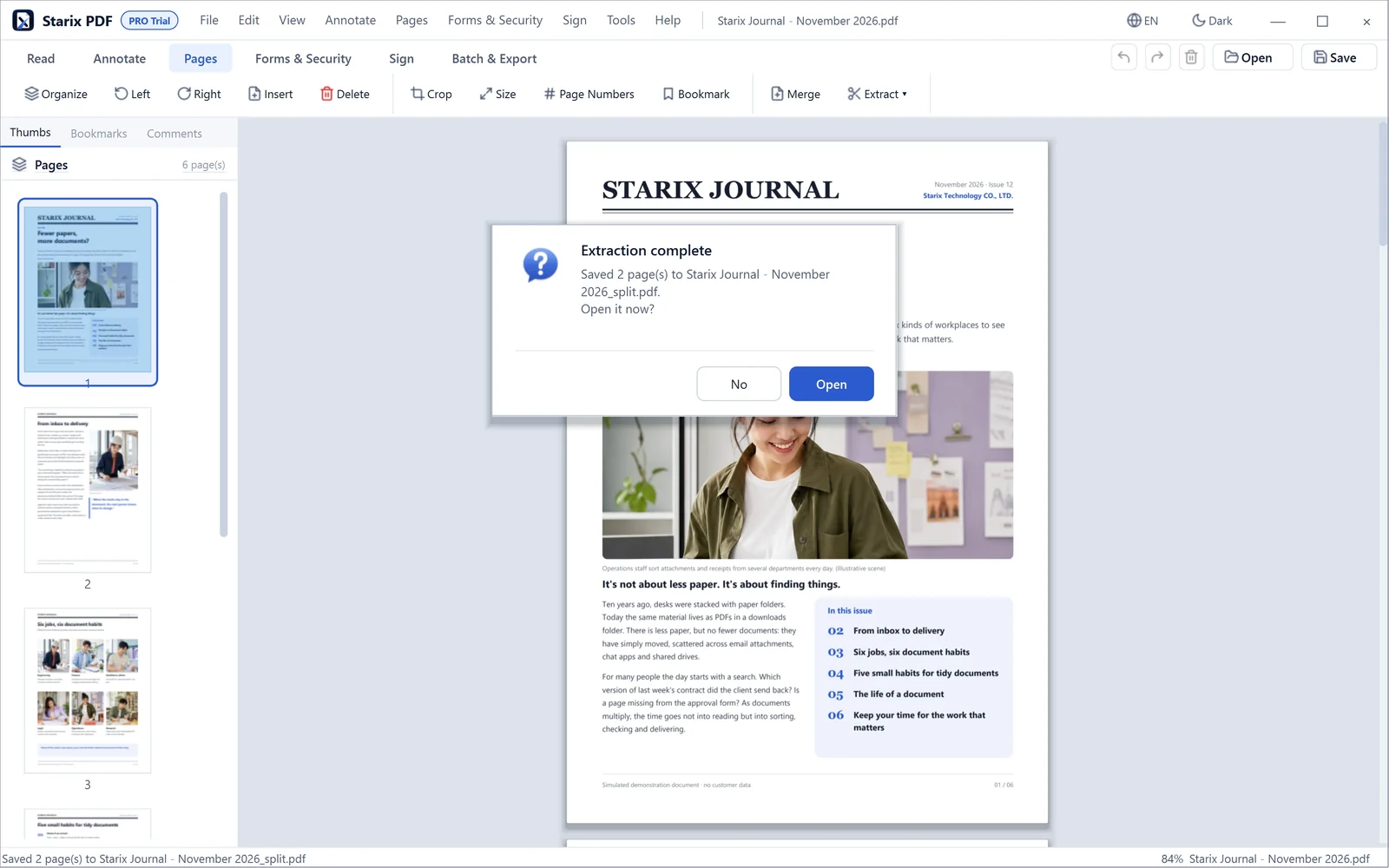
Open the new file
When the file is saved, click Open.
Real Starix PDF screen · simulated demonstration document STEP 4
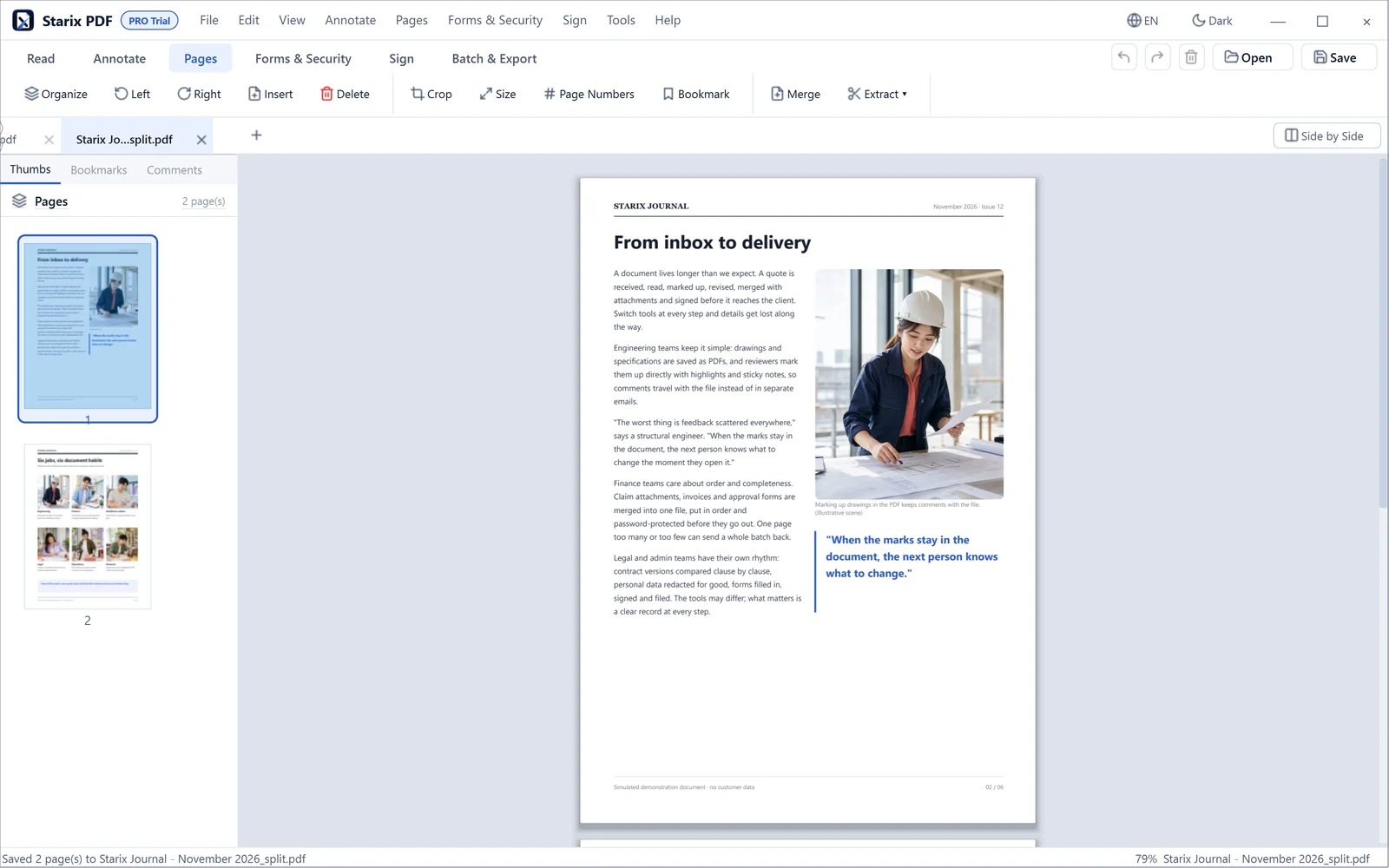
Check the extracted pages
The new file opens in its own tab with the extracted pages in the thumbnails. The original file stays as it is.
Real Starix PDF screen · simulated demonstration document
Other ways to extract
Try it with the practice file
The practice file is a six-page STARIX JOURNAL issue. Extract pages 2 to 3 with the steps above. The practice file is for practice only.
Questions and answers
Does the original file change?
The original stays as it is; the extracted pages are saved as a new file.
How do I write a page range?
Use a hyphen for a run of pages and commas between ranges, for example 1-5, 8, 10-12.
Where is the new file saved?
After OK you choose the folder and file name; the suggested name ends in _split.
Keep the pages you needin a file of their own.
Download Starix PDF and extract pages from the practice file.
Download for Windows