 Starix PDF
PDF too big to send?Compress it.
Starix PDF re-encodes the photos and pictures in the document and saves a smaller copy; the text stays searchable.
Pro feature · Free 14-day trial · Windows 10 / 11

Before you start
Four steps to a smaller PDF
STEP 1
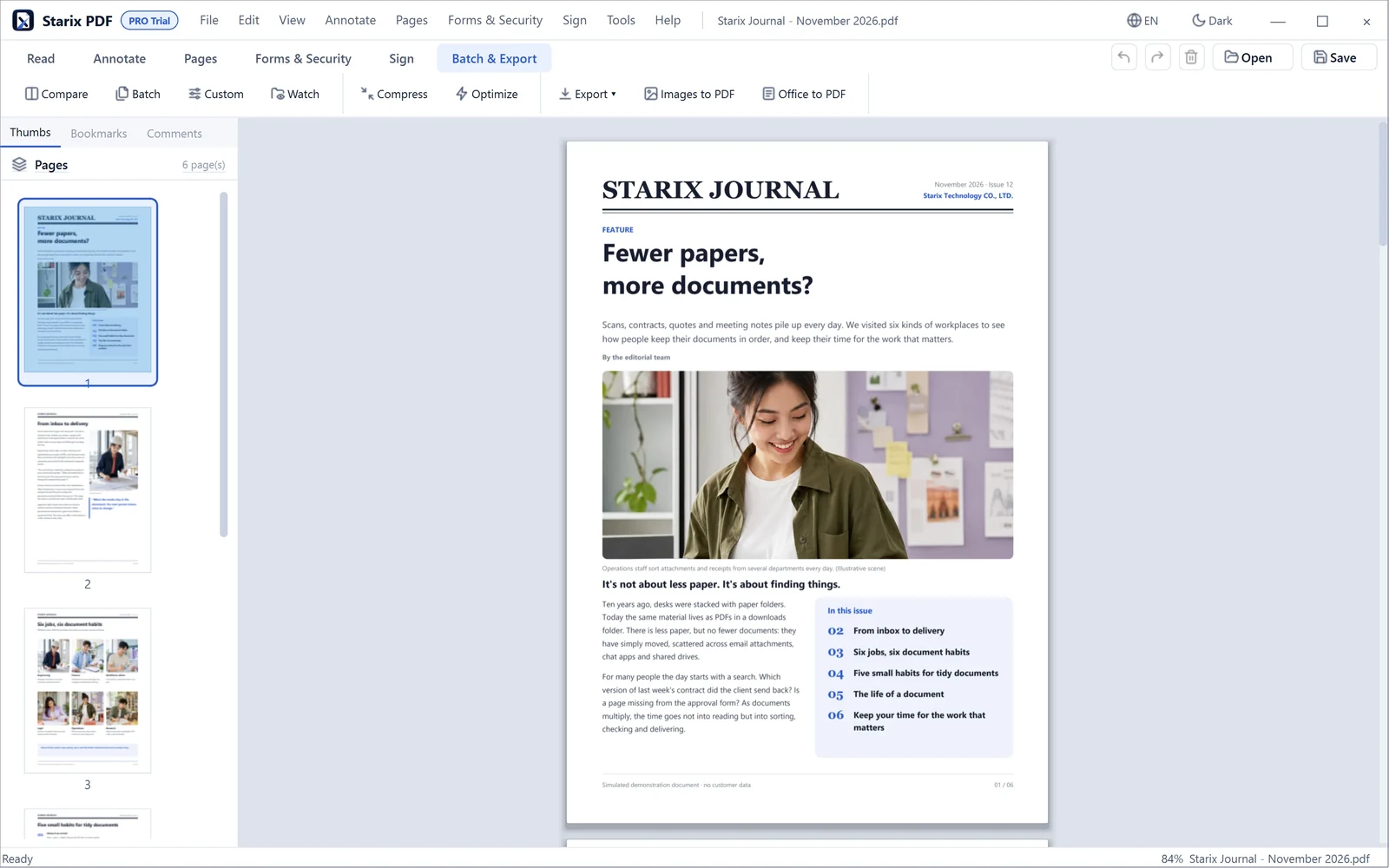
Choose Batch & Export, then Compress
Open the PDF, choose Batch & Export at the top, then click Compress.
Real Starix PDF screen · simulated demonstration document STEP 2
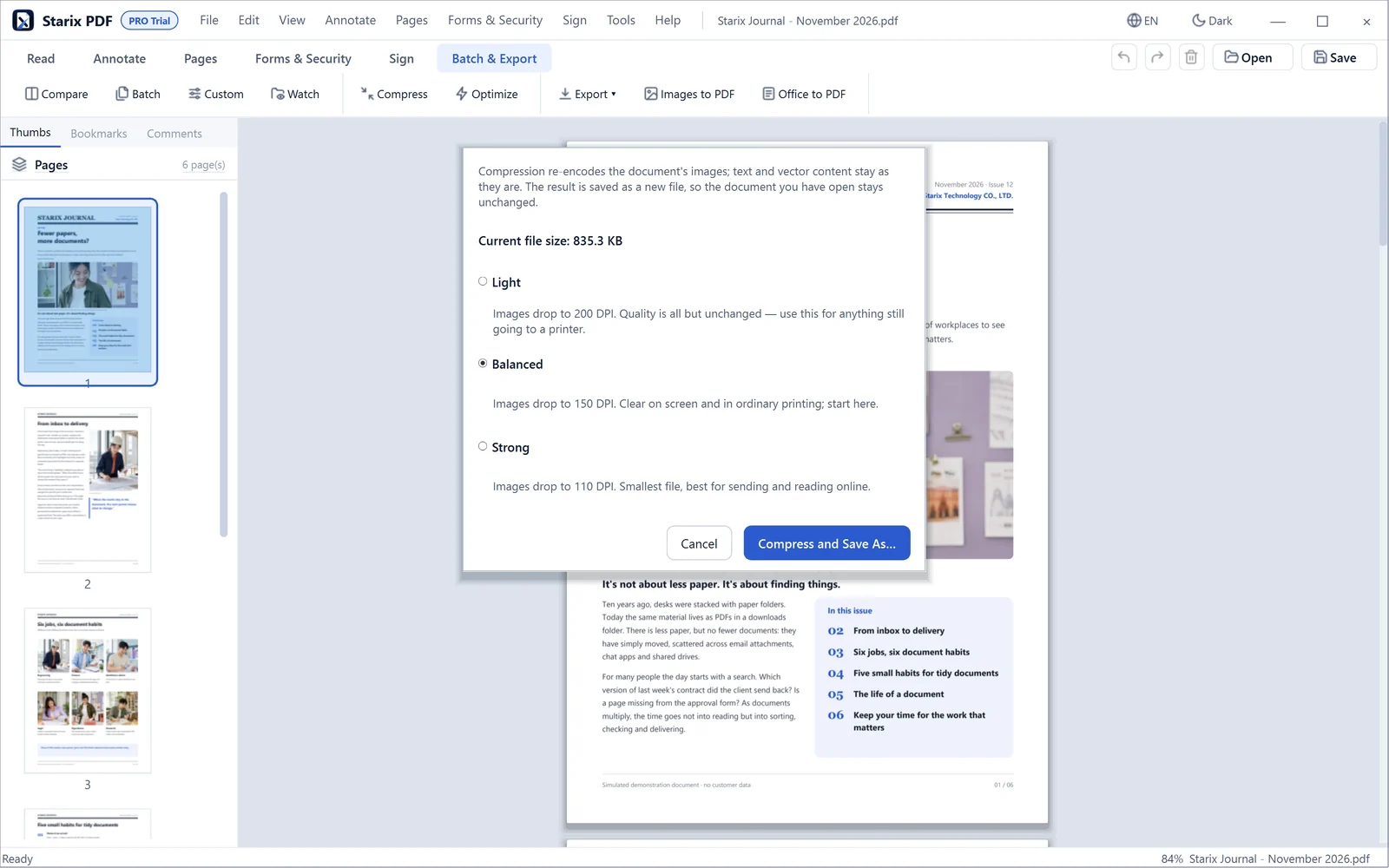
Pick a level
Balanced suits most documents; choose Light for printing and Strong for email or reading on screen. Then click Compress and Save As… and choose where to save.
Real Starix PDF screen · simulated demonstration document STEP 3
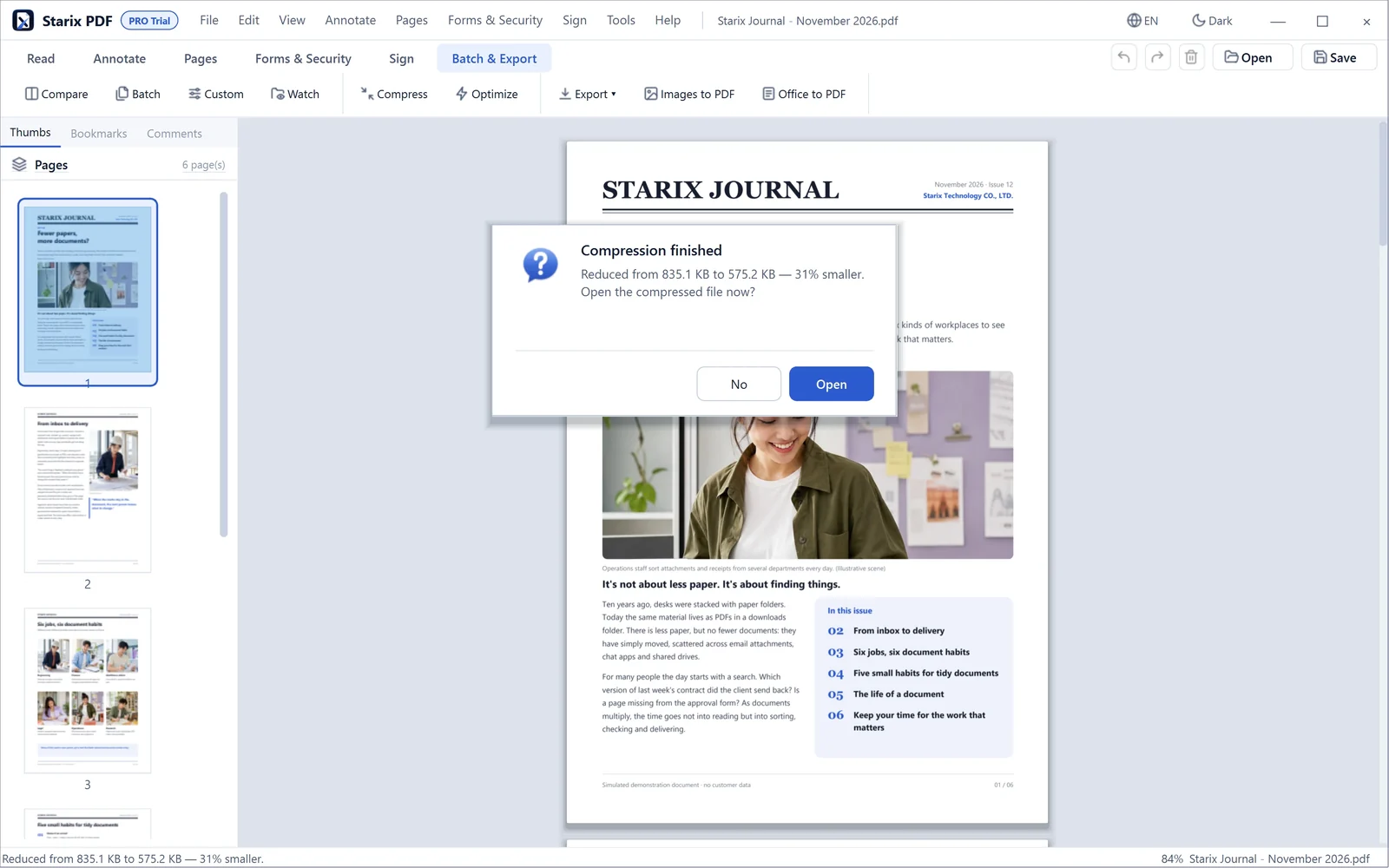
Click Open when it finishes
Compression finished shows the size before and after. Click Open to look at the new file.
Real Starix PDF screen · simulated demonstration document STEP 4
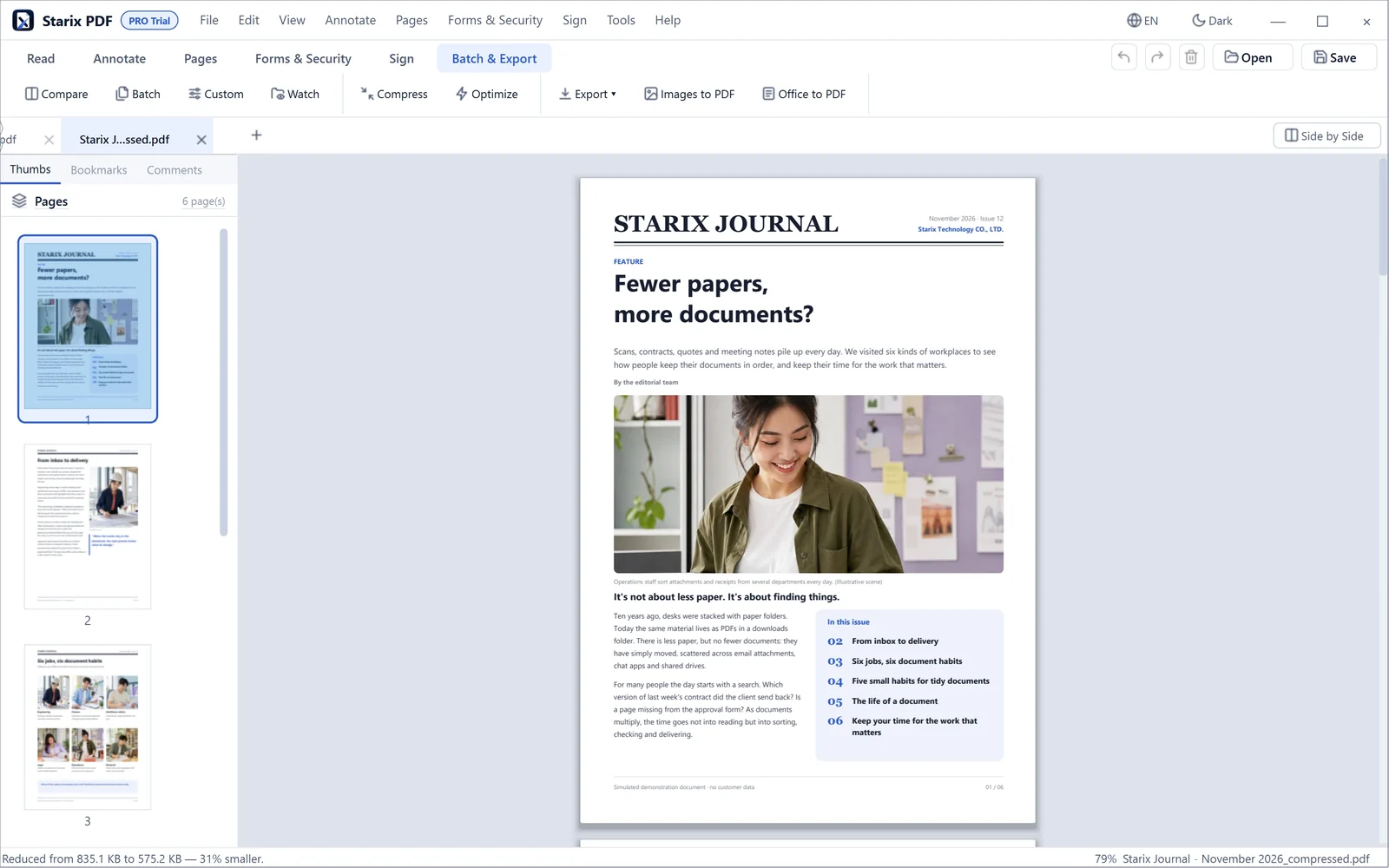
Check the new file
The compressed copy opens in a new tab and the bottom-left corner shows how much was saved. Page through it, then send it.
Real Starix PDF screen · simulated demonstration document
Practice with a sample file
Download the sample STARIX JOURNAL issue, which has photos, and compress it with the steps above. The sample file is for practice only.
Questions and answers
Is the text still searchable?
Yes. Compression re-encodes pictures only; text and vector content stay as they are.
Which level should I choose?
Start with Balanced. Choose Light for sharp printed photos and Strong for screen reading or email.
Why do some files shrink only a little?
A PDF that is mostly text with few pictures is already compact; it is saved as it is.
Attachment too big next time?Compress, then send.
Download Starix PDF and compress the sample file.
Download for Windows