 Starix PDF
See what changedbetween two versions.
Put in the original and the new version and click Start comparison; removed and added text is listed page by page.
Pro feature · Free 14-day trial · Windows 10 / 11

Before you start
Four steps to compare documents
STEP 1
Click Compare Documents on the start page
Open Starix PDF and click Compare Documents under Tools on the start page.
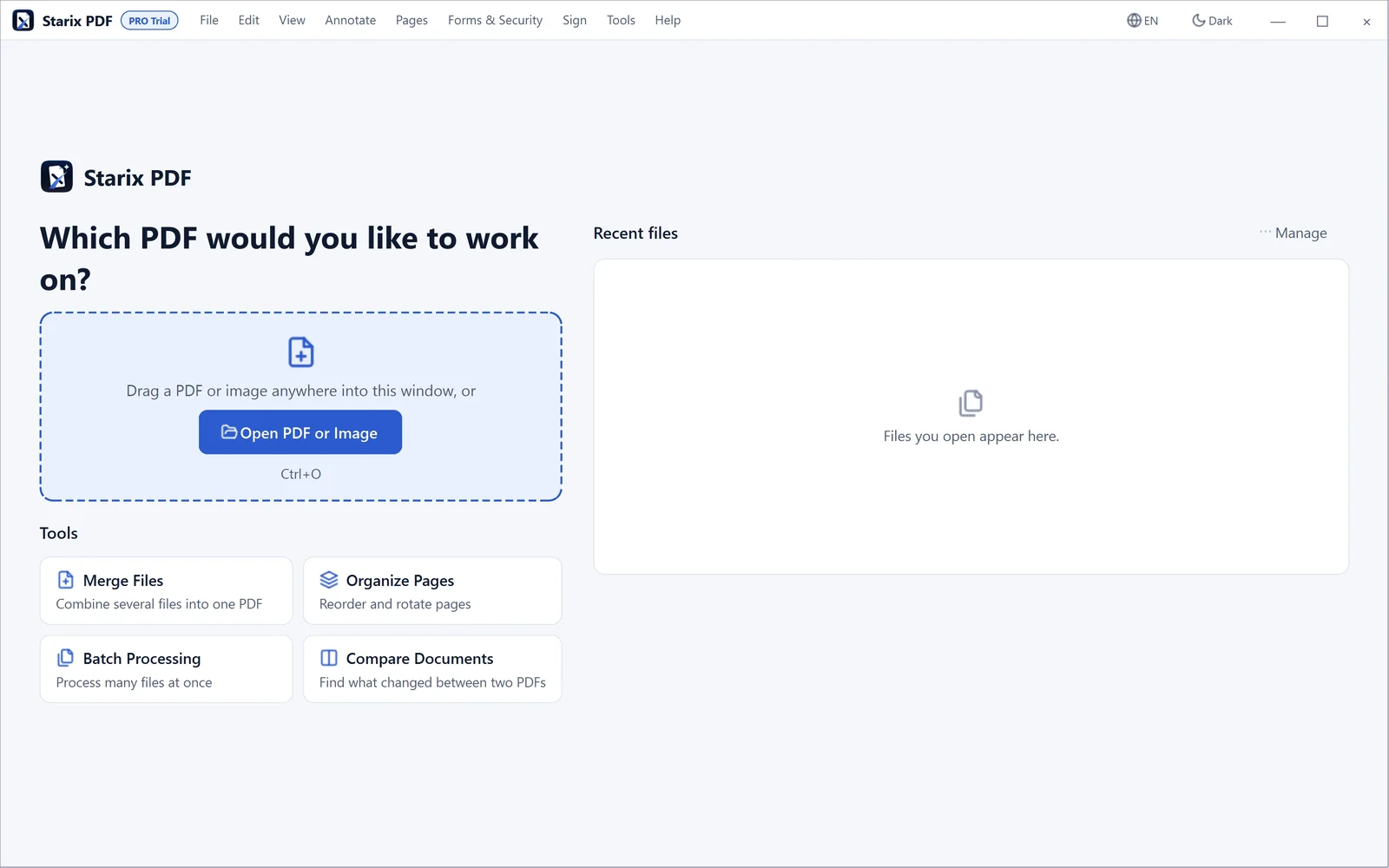
Real Starix PDF screen · simulated demonstration document STEP 2
Put in the original
Drag the original onto the left card or click Choose PDF; then click Choose PDF on the right for the new version.
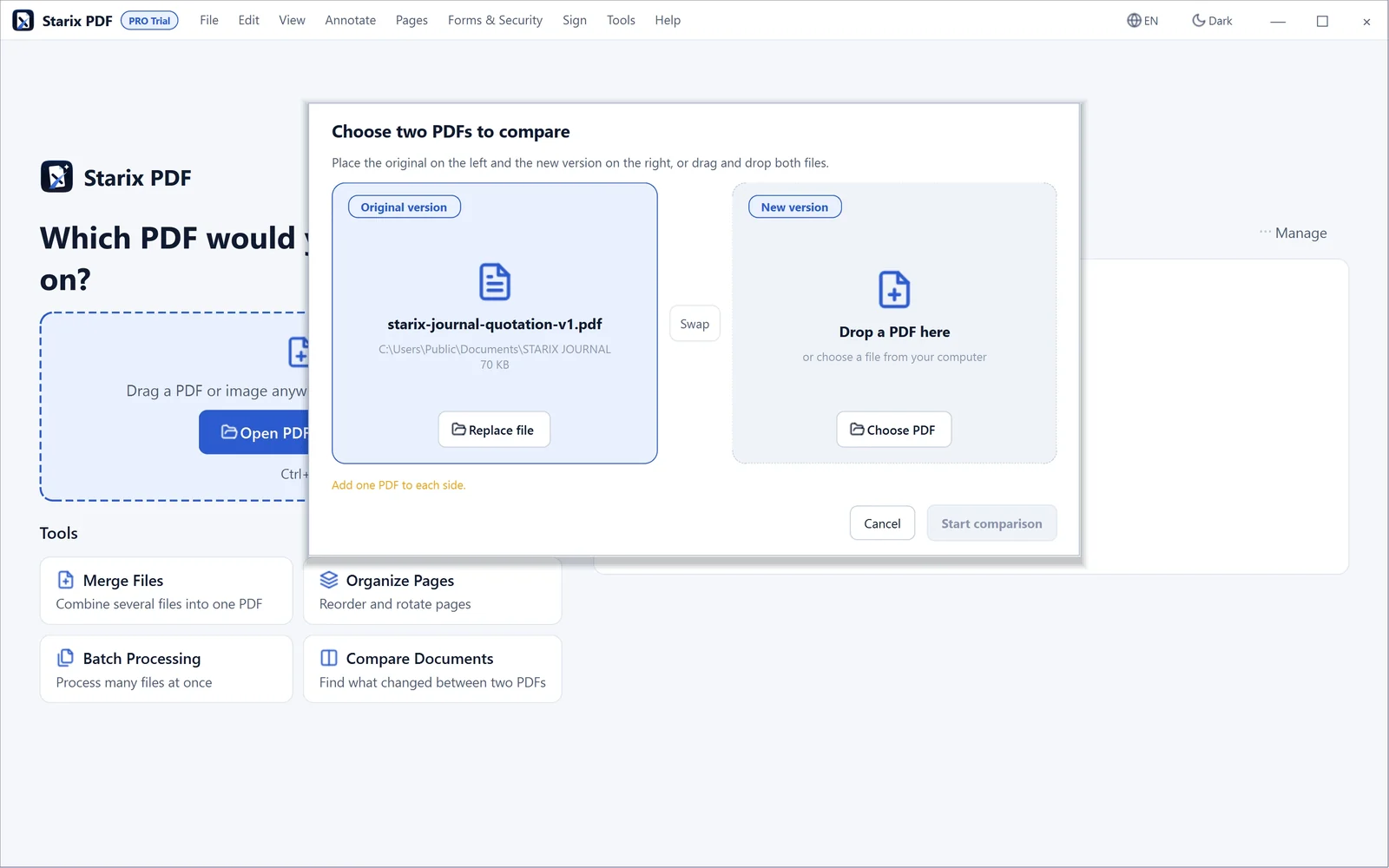
Real Starix PDF screen · simulated demonstration document STEP 3
Start the comparison
With both files in place, click Start comparison.
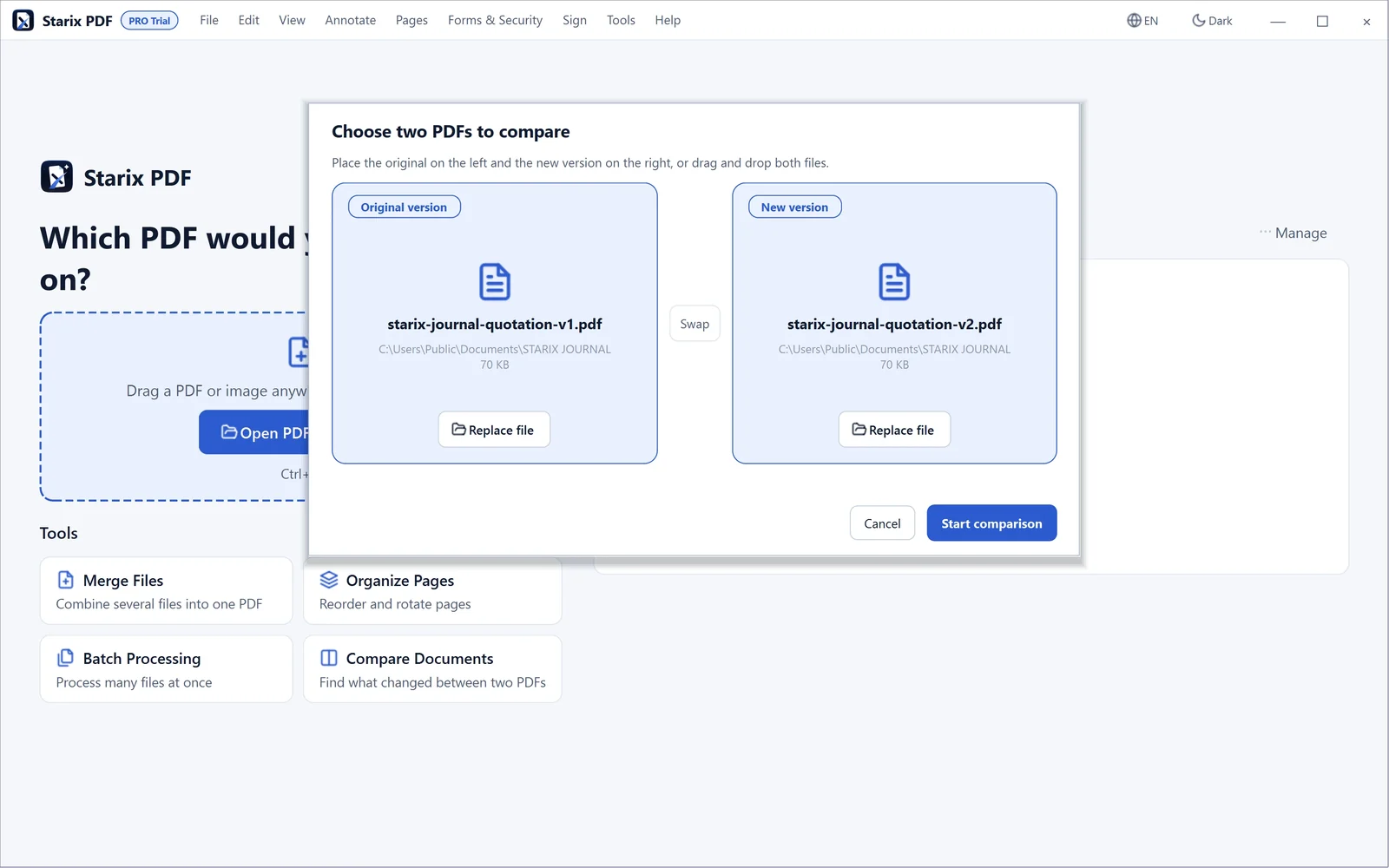
Real Starix PDF screen · simulated demonstration document STEP 4
Read the differences
The top line counts changed, added and removed pages; below, each page lists removed text in red and added text in green.
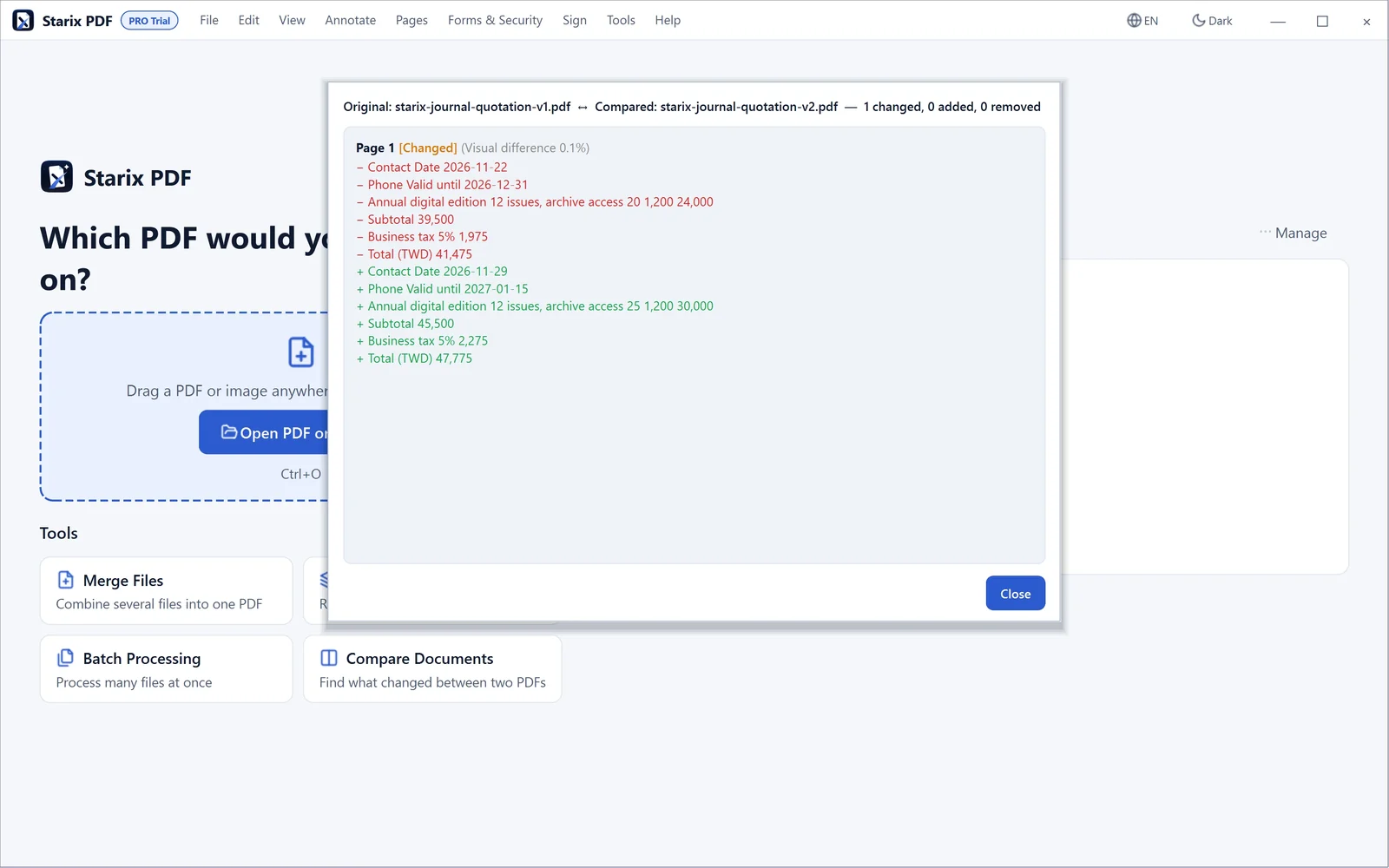
Real Starix PDF screen · simulated demonstration document
Comparison tips
Try it with the practice files
The practice files are the first and second versions of one quotation. Find the changed quantity, amounts and dates with the steps above. The practice files are for practice only.
Questions and answers
Does comparing change my files?
Comparing only reads the two files; the results appear in a window and both files stay as they are.
Can I compare documents with different page counts?
Yes. Extra or missing pages are listed as added or removed pages.
Find the changeswithout reading word by word.
Download Starix PDF and compare the practice files.
Download for Windows